

SaaS team subscriptions are usually billed by workspace and seat, so the amount changes with headcount. The instructions cover self-serve web purchases paid with a credit or debit card. Enterprise contracts and special legacy plans follow their own agreements; the amounts are illustrative calculations.
Confirm two things first: who it's for, and how long
- Who it's for: which workspace or team the subscription is attached to, and who holds billing management.
- How long: monthly plans renew each month; annual plans are a single purchase covering the full year, not an installment plan.
The listed price of "per person per month" is not necessarily what your card is charged each month. Multiply it by the number of paid seats, then add taxes and any add-ons.
Billing units across the three platforms
| Comparison | Notion | Slack | Figma |
|---|---|---|---|
| What's billed | A single workspace | The workspace, not just yourself | One upgraded team |
| Billing unit | Paid member seats | Active members who meet billing criteria | Type of paid seat |
| Free collaborators | Page guests within limits | Free types such as single-channel guests | View seats |
| First payment | Month or full year at purchase | Charged on the purchase day based on active members | Per the seats and term purchased |
| Later additions | Prorated for the remaining cycle | Prorated for the remaining time | Added to the bill once seats are approved |
| Can annual plans still be charged again? | Yes — member changes create prorated charges | Yes — new members create prorated charges | Yes — adding monthly seats |
| Immediate refunds after removal? | Usually no prorated refund | Credited per applicable rules | Downgrades to View usually don't prorate |
Each platform defines the scope of seats and free members, so follow the plan page currently shown on the official site.
Adding a card and making your first payment
- Open the official site, switch to the workspace or team you want to pay for, and confirm the account you're signed in as.
- Choose the plan, term, and headcount; read the order summary first, then fill in the card fields.
- Keep the billing address consistent with the issuer's records; if you need reimbursement, fill in the company info per the applicable fields.
- If the page asks for verification, complete it as prompted, then return to the platform to check the order status.
- After success, record the total for this purchase and the next renewal date.
| Field | How to read it |
|---|---|
| One purchase covering the full year | Annual billing is one upfront payment; review the full-year total |
| Prorated for remaining time | New seats are billed proportionally for the remaining cycle |
| Billed headcount | Can be higher than the number of people actually using it now |
| Pending vs. paid | Pending is not success; the platform order is the source of truth |

Notion: subscriptions and changing cards
- Open settings in the target workspace, go to the upgrade entry, and choose the plan you want.
- Review the order summary: monthly or annual, the number of billed members, and the total.
- Enter the card details, confirm the payment, and return to the billing page to see the subscription status.
Change the card under the payment method section of the billing page; after updating, confirm the default payment method and the next billing date. Updating a card is not the same as canceling the subscription — they're different actions.

Notion: extra charges for new members and guests
Notion bills each workspace independently. Adding paid members creates prorated charges for the remaining cycle, and even if your original plan is annual, member changes can still appear as monthly charges.
- New members: prorated for the remaining cycle; billed at the full price in the next cycle.
- Removing members: usually no immediate prorated refund.
- Page guests: choose a guest role when inviting; if someone only needs to view pages, there's no need to upgrade them to a member.
A simple example explains how proration works: at a $12 monthly rate with a 30-day cycle, if a new member joins with 10 days left, the prorated charge this cycle is about $12 ÷ 30 × 10 = $4; in the next cycle that member is billed at the full price. This figure only illustrates the math.

Slack: subscriptions, fair billing, and cancellation
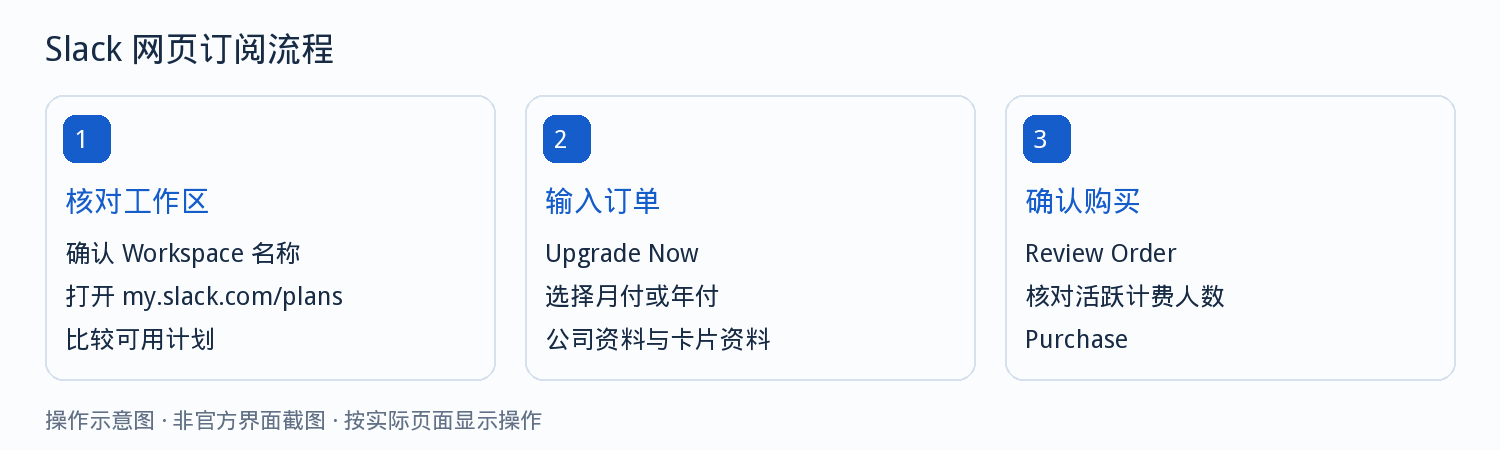
- Sign in to the target workspace, view the plans on the official plan page, and choose a term.
- Fill in the organization info and card details, and go to the order review page.
- Review the number of billable active members and the total, then confirm the payment.
- Check the payment method and billing history on the billing page in the admin console.
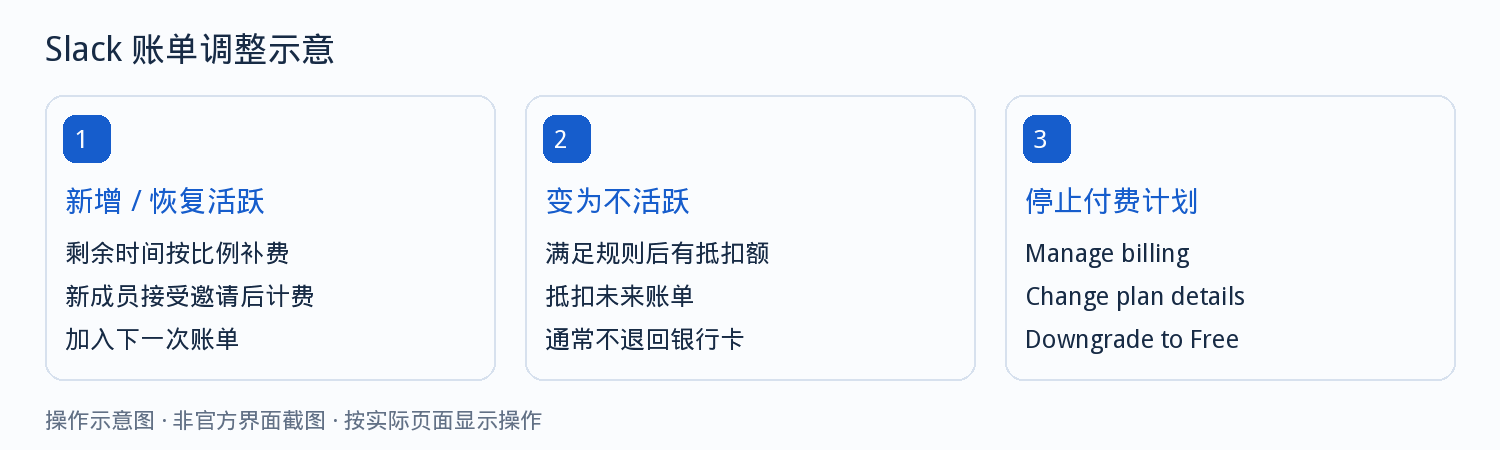
Self-serve plans on the official site bill by billable active members, including owners, admins, full members, and multi-channel guests; free types like single-channel guests have their own conditions. The first purchase is charged on the day you buy, and renewals follow your chosen term.
Cancel the subscription on the billing page in the admin console, choose the effective time as shown on the page, and complete the final confirmation. Keep a record of the effective time so you can verify it later.
Figma: seat selection and annual plans
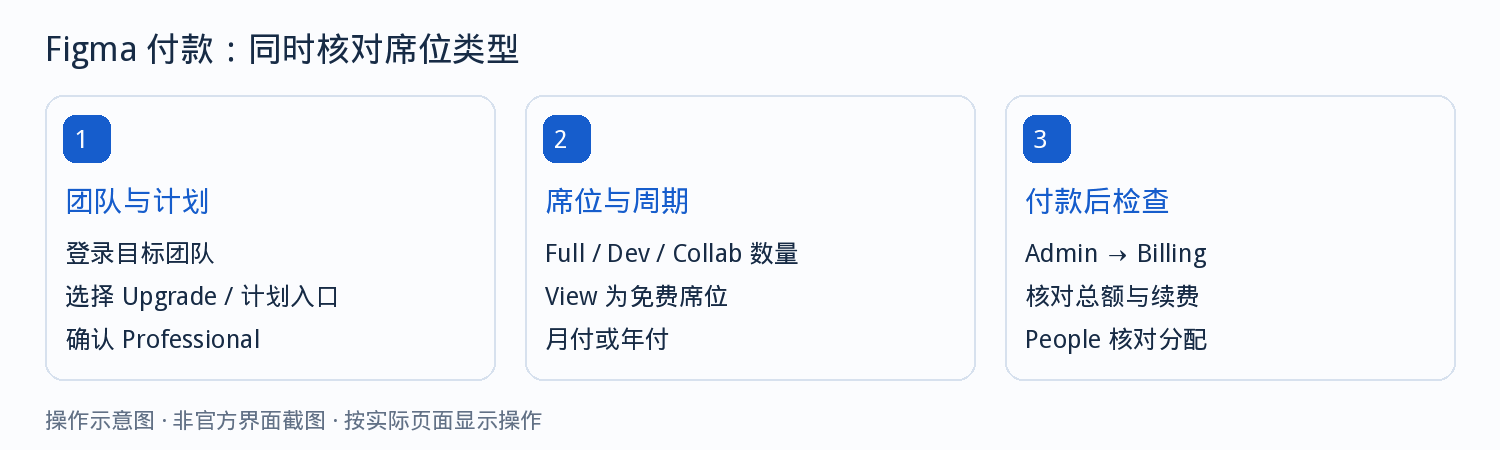
| Seat type | How to choose |
|---|---|
| View | Choose this tier if you only need to view and comment |
| Collab | Check whether the collaboration product you need is included |
| Dev | Check whether the development and handoff features you need are included |
| Full | Check whether full features such as design editing are included |
The products included in each tier change over time — choose based on the current seat documentation.
If free seats are running low, adding or approving upgrades purchases new seats. Admins can choose automatic or manual approval in the seat request settings; use manual approval when you need cost control.
Why annual plans still show monthly bills
When an annual team adds paid seats mid-term, the new seats usually create a monthly subscription. So the annual bill for the base plan and the monthly bill for added seats can coexist.
- Base team, annual: paid once per year.
- Added seats, monthly: a separate bill created for the new headcount.
- Extra limits: some platforms charge separately for add-ons such as extra features or usage limits.

Failed payments and payment records
| Symptom | Check first |
|---|---|
| Charged again after annual billing | Whether members were added or monthly seats created |
| Amount higher than the listed price | Currency, full-year total, and billed headcount |
| Credits applied but card still charged | Whether the amount due after credits is still above zero |
| Paid but features not upgraded | Whether the payment went to another workspace |
| Card payment failed | Card limit, billing details, and permissions |
| Billed after cancellation | Effective date and prorated charges already created |
After a failure, confirm the transaction status first, then decide whether to retry.
You only need to give platform support the workspace name, order number, time, currency amount, and the card's last four digits — never send the full card number, security code, or verification codes.
Picking a card for team subscriptions: one card per team
Team subscription amounts change with seats, so a card with a fixed limit is easier to manage than one sharing a limit. The five entries below are ordered by how you'd decide.
Card type selection guide
Compare card types by payment requirementsCompare card types across 5 user profiles and 15 use scenarios, and learn how BIN ranges work and how to combine multiple cards.Visa virtual card
Merchant accepts Visa, or you're unsure of their preferenceThe most widely accepted; a good choice for walking through a full team subscription payment with one card first.Mastercard virtual card
Monthly auto-renewals and card verificationMore consistently compatible with recurring automatic charges — a good fit for subscription bills.US virtual credit card
For team accounts based in the USA US BIN paired with a US billing address fixes declines caused by mismatched addresses.Hong Kong virtual credit card
For team accounts based in Hong KongAn HK BIN paired with an HK billing address, used under the same principle.Give one card to each team account. The card's limit is that team's budget ceiling, and problems won't affect other teams.
FAQ
How is a team subscription billed?
Most platforms bill by paid seats in a workspace or team, i.e. headcount × unit price. Free collaborators and guests aren't billed, but each platform defines free members differently.
Why do monthly bills still appear after annual billing?
Annual billing only covers the seat count at purchase time. Members or paid seats added mid-term are billed separately, and some platforms create a monthly subscription for them.
Will removing a member trigger an immediate refund?
Usually not — there's no prorated refund for the current period. After removal, the member isn't counted in the next cycle, and what's already paid for the current period generally isn't refunded.
Does changing my card cancel the subscription?
No. Changing the card only updates the payment method; the subscription continues. Cancellation must be done separately on the billing page.
How do I keep team subscription costs under control?
Require manual approval for seat requests, give one card to each team account, and treat the card's limit as that team's budget ceiling.
Can I pay for team subscriptions with a virtual card?
Yes, as long as the issuer supports the merchant and recurring charges, and the billing address matches the region of the team account.
Set the card and its limit before your team pays
Give each team account one card, and the card's limit is that team's budget ceiling. Prorated charges from seat changes are also visible directly on that card.