
Google Ads Payment Guide
Create Google Ads and payment details using truthful information, configure ads and budgets and confirm available payment methods. Check review, delivery, bills and card records after saving, keeping budgets, thresholds and card funds separate.
Step 1: sign in to your Google account and create an ads account
Open ads.google.com (external source, for reference only, not an endorsement), click "Get started" and sign in with your Google account. Enter your business name and website; if you don't have a website, only choose the other promotional entries the platform actually offers.
In the account creation flow, enter your real billing country/region, time zone and currency; set up the payment profile as an individual or business, with real name, address and tax information. Country and currency affect which payment methods are available, and the time zone affects reporting. Double-check everything before submitting.
Step 2: choose a goal and set up your first campaign
Beginners can start with Search ads: choose a suitable goal or the manual ad-creation entry the platform offers, then fill in the landing page, target regions and language, keywords, headlines, descriptions and creatives. If your goal is sales or leads, set up the matching conversion tracking first.
Set an applicable bid and average daily budget and review previews. US$10/day is only an example. Average daily budget is not a universal daily cap. Most applicable campaigns use daily budget × 30.4 for a full month with unchanged budgets; changes and mid-month starts follow separate rules.
Step 3: fill in the payment info to match your PIKABAO card
This assumes you already have a PIKABAO Virtual Card. Below, the left side is an illustration of the payment fields and the right side is a sample PIKABAO VISA card face — the sample details cannot be used for real payments. Fill in the form to match your own card:
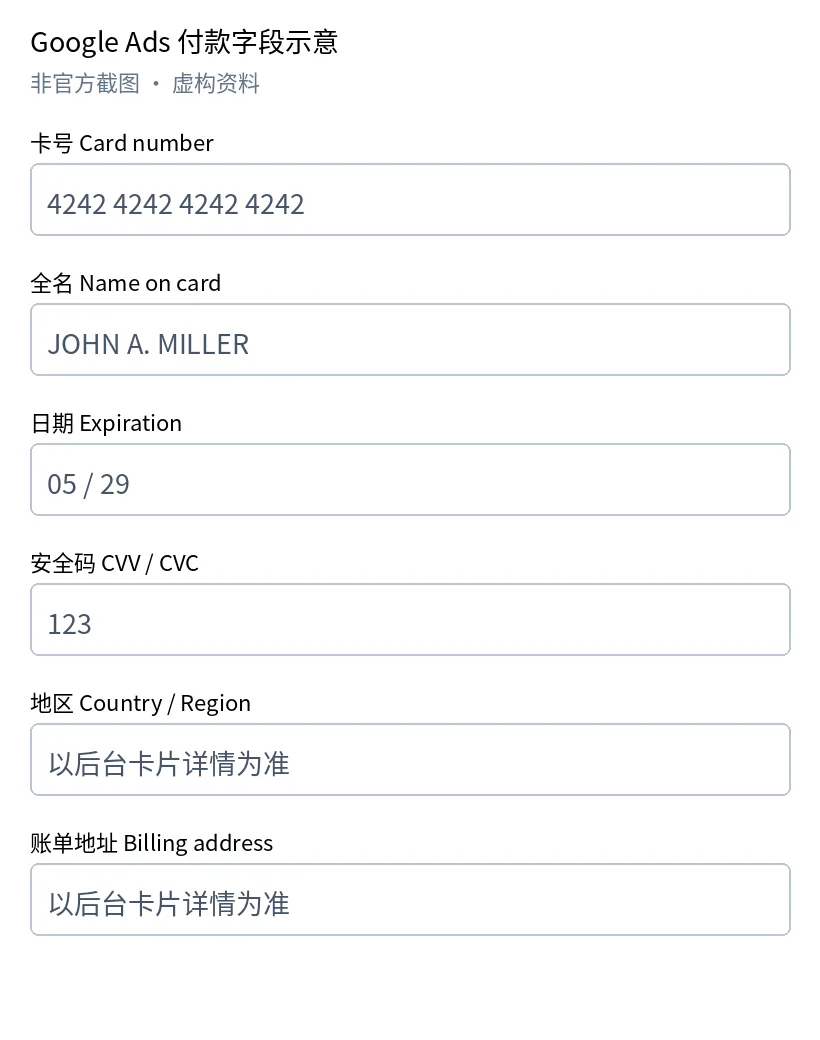 Payment field illustration (not an official screenshot, fictional details) used to show how the fields correspond; the real form as shown in your account takes precedence.
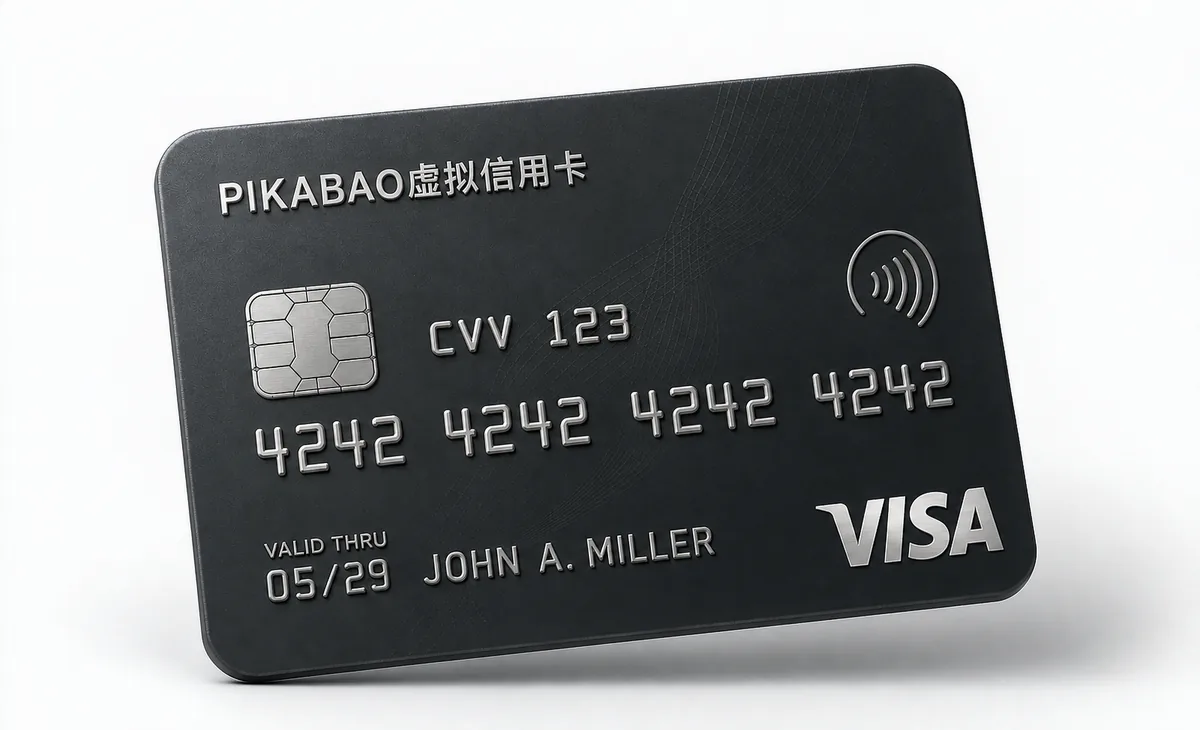 Sample VISA-style card face; all card details are fictional.
Match each field one by one: Card number — enter the full card number; Full name — enter the name registered on the card; Date — enter the expiry as MM/YY; CVV/CVC — enter the three-digit security code (what was earlier called the "VCC number" is usually labeled CVV/CVC on payment forms).
Region and billing address: open "Card details" in the PIKABAO dashboard and use the details registered to the card; how to get them, see Where to find your card number, expiry and CVV and Where does the billing address come from; what can block a payment when the address doesn't match, see Will the AVS billing address check block my payment. The ads account's business address, entity name and tax details are filled in separately per your real entity. If the platform doesn't show a field, there's no need to fill it in.
Check that your card supports this platform, its currency, online transactions and the charge method, and keep enough available balance. Click Save/Submit; if a verification step appears, complete it as instructed by the card issuer. Whether a virtual card is accepted is decided by the platform and the card issuer.
Step 4: save the payment method and confirm the billing model
Postpaid / automatic payments: after ads generate costs, charges are taken when the payment threshold is reached or on the first day of the month. Prepaid: top up first in the billing summary, and ads are charged from the balance; when the balance runs out, delivery stops. The models available depend on region, currency and account eligibility, and may not be freely switchable.
Step 5: submit the campaign and confirm it's running
Review the goal, link, regions, budget, dates and creatives, then click Publish. Complete the advertiser verification the platform requires; check the status of the campaign, ad groups and ads, and resolve messages such as "not eligible / disapproved".
After the ad passes review, also confirm that it's enabled, the start/end dates, valid payment, and that balance or chargeable limit is available. Only when you see impression or click data has the ad actually started running; saving successfully does not mean it's live.
Step 6: review charges and keep your payment records
In the transaction records / documents section your account provides, find the receipt or invoice for the date in question and download it. Whether names and tax documents are provided depends on the billing region and payment profile.
Also save the actual transaction records in the PIKABAO dashboard and compare merchant, currency, amount, date and the card's last four digits. There may be a time gap between the platform bill, the ad spend and what the card issuer actually settles.
Payment, Review and Delivery Issues
Check transaction state
For a payment issue, check the order, receipt, authorization and final charge status to avoid double payment. Use the message to check available funds, read-only limits, card status, registered details, acceptance and authentication. No transaction record is only a clue: it does not prove merchant blocking, that the issuer received nothing or that another card cannot help.
Separate permissions and review
For missing payment entries, check account, permissions, billing country, currency and notices. For disapproval, check creatives, landing pages and advertiser verification rather than treating every delivery issue as a card problem.
Support evidence
Provide the merchant, time, amount, currency, card’s last digits, transaction ID and a redacted screenshot when contacting support. Never send the full card number, CVV, password, verification code or seed phrase. Contact the merchant for order issues and Pikabao support for card or deposit status.
Payment entry unavailable
Check the selected account, billing details and permissions, record notices and ask the administrator or Google support. A missing entry is not proof of a card decline; do not create new accounts to bypass restrictions.
Ads not delivering
Review ad approval, advertiser verification, campaign state, schedule and budget. If payment is normal but creatives are unapproved, follow creative or account notices rather than replacing ad review with another card.
Billing Modes, Budgets and Payment Rules
Available billing modes
Google Ads methods and billing settings depend on region, currency, eligibility and rules, and may not be freely switchable. Automatic payment does not universally require a credit line, and manual payment is not inherently best for every virtual card.
Monthly-limit rules
For most applicable campaigns with unchanged average daily budgets over a full calendar month, the monthly spending limit is generally daily budget × 30.4. Mid-month starts and budget changes follow official calculations. This is not universal for all campaign types and is not an individual charge or card-funding amount.
Official references
Sources: Google Ads spending limits and payment methods. Check schedules, budget changes and applicable campaign types separately.
Advertising Use, Issuance and Slots
Advertising category support
Choose a currently supported advertising use and check MCC 7311. Pikabao’s category support follows current issuance options, but it does not satisfy every merchant account review, card-type, billing-mode or authentication requirement. Business location and tax details must remain truthful.
Acceptance
Check the network, card type, issuing region, merchant category, billing mode and authentication support together. Acceptance is decided by the merchant and issuer. Correct addresses, supported advertising categories or one successful payment do not guarantee another payment.
Unclosed slots
Standard users can hold up to 5 unclosed cards. Approved advertising users can hold up to 30 after application, not automatically for every team account. Frozen, idle and inactive cards count until closure completes. Idle cards are not automatically closed.
Cards by bill and project
Allocate cards by project, purpose or billing cycle to reconcile bills, distribute funds and manage cards individually. One card per merchant is not mandatory. Separate cards or BINs do not guarantee risk isolation, account independence or higher acceptance. Set budgets and spending caps with the merchant; card funds and read-only limits are not advertising budgets.
Billing country and currency are truthful payment-profile settings; issuing region does not replace business location. Check available methods at setup, and use official change rules for existing accounts instead of altering business details to match a segment.
Funds, Authorizations and Payment Issues
Card funds and limits
Account balance and each card’s funds are separate. After an account deposit arrives, fund the intended card before using it. Card balance changes with spending and does not reset monthly. Per-transaction and daily limits are read-only; funding does not raise them.
Authorization holds
A $0 verification generally holds no actual amount. A nonzero authorization may temporarily reduce available funds but is not necessarily a final purchase. Charges, authorization reversals and refunds are distinct states, with timing determined by merchant and issuer processing. An amount alone does not establish verification, duplicate billing or service activation.
Order and payment state
For a payment issue, check the order, receipt, authorization and final charge status to avoid double payment. Use the message to check available funds, read-only limits, card status, registered details, acceptance and authentication. No transaction record is only a clue: it does not prove merchant blocking, that the issuer received nothing or that another card cannot help.
Correct the cause before retrying
Retry according to the merchant’s instructions after identifying and correcting the cause. If the status is unclear, contact support instead of repeatedly submitting or issuing test cards. There is no universally safe retry count. Most segments do not charge for declines; charging segments allow 3 free failures per calendar month, then charge $0.40 each from account balance, resetting at the start of the UTC month. Check current segment terms.
Billing Records, Refunds and Stopping Ads
Refund and withdrawal boundaries
The merchant initiates refunds under its rules. Check the destination and status against the original transaction; arrival is not guaranteed within a fixed time. Returning card funds to account balance, withdrawing account balance to a wallet and merchant refunds are separate operations. The $3 per account-balance withdrawal is not a fee for every merchant refund. Review pending authorizations, disputes and refunds first.
Stopping ads and amounts due
Pause or close ads to stop future delivery and check incurred but unsettled fees. Deleting, freezing or closing a card does not cancel those fees. Reconcile ad spend, verification records and final charges separately.
Keep safe evidence
Provide the merchant, time, amount, currency, card’s last digits, transaction ID and a redacted screenshot when contacting support. Never send the full card number, CVV, password, verification code or seed phrase. Contact the merchant for order issues and Pikabao support for card or deposit status.
FAQ
Is Google Ads acceptance guaranteed?
Check the network, card type, issuing region, merchant category, billing mode and authentication support together. Acceptance is decided by the merchant and issuer. Correct addresses, supported advertising categories or one successful payment do not guarantee another payment.
Is a card authorization an ad charge?
A $0 verification generally holds no actual amount. A nonzero authorization may temporarily reduce available funds but is not necessarily a final purchase. Charges, authorization reversals and refunds are distinct states, with timing determined by merchant and issuer processing. An amount alone does not establish verification, duplicate billing or service activation.
Is manual payment always better than automatic payment?
Not universally. Check the account’s region, currency, billing setting and card attributes and use currently supported methods; free switching is not guaranteed.
Does no record establish merchant blocking?
For a payment issue, check the order, receipt, authorization and final charge status to avoid double payment. Use the message to check available funds, read-only limits, card status, registered details, acceptance and authentication. No transaction record is only a clue: it does not prove merchant blocking, that the issuer received nothing or that another card cannot help.
Which billing country, currency and business details should I enter?
Payment details include card number, CVV, expiry date, address, postal code and name; enter the registered details shown for your card. Business name, actual location, tax details and platform eligibility must be checked separately using truthful information. A card address is not a substitute. A BIN describes issuance, not residency or account eligibility.
Is daily budget × 30.4 an individual payment amount?
No. It is a monthly spending-limit calculation for most applicable campaigns with unchanged budgets running a full month. Mid-month starts, changes and exceptions follow their own rules. Bills and individual charges need separate checks.
Is advertiser verification the same as card verification?
No. Advertiser verification concerns identity or business eligibility; card verification concerns payments. Complete each requirement separately and follow official notices for incomplete review or disapproved ads.
Are ad-platform refunds the same as Pikabao withdrawals?
The merchant initiates refunds under its rules. Check the destination and status against the original transaction; arrival is not guaranteed within a fixed time. Returning card funds to account balance, withdrawing account balance to a wallet and merchant refunds are separate operations. The $3 per account-balance withdrawal is not a fee for every merchant refund. Review pending authorizations, disputes and refunds first.
Can fees still post after pausing ads?
Pause or close ads to stop future delivery and check incurred but unsettled fees. Deleting, freezing or closing a card does not cancel those fees. Reconcile ad spend, verification records and final charges separately.
Can a monthly spending limit be used directly as the funding amount?
No. A monthly spending limit constrains applicable campaign spend; individual collections follow billing rules. Fund for actual dues, replenishment timing, tax and holds, and check read-only limits separately.
Check Uses and Fees Before Issuing a Pikabao Card
Register and complete required checks, review current segments, merchant requirements and actual fees, then fund the intended card for its bills.