
First, confirm which plan you're looking at
As of October 2026, the official The X Subscription has launched: new users take the new unified plans, while existing X Premium users can keep their original plans. The two places people get confused most often, said upfront — the new Plus and the legacy Basic are not the same plan, and the new Premium and the legacy Premium+ are not the same price either. Below, "new" and "legacy" are always written separately; if anything doesn't line up, defer to the plan name shown on your checkout page.
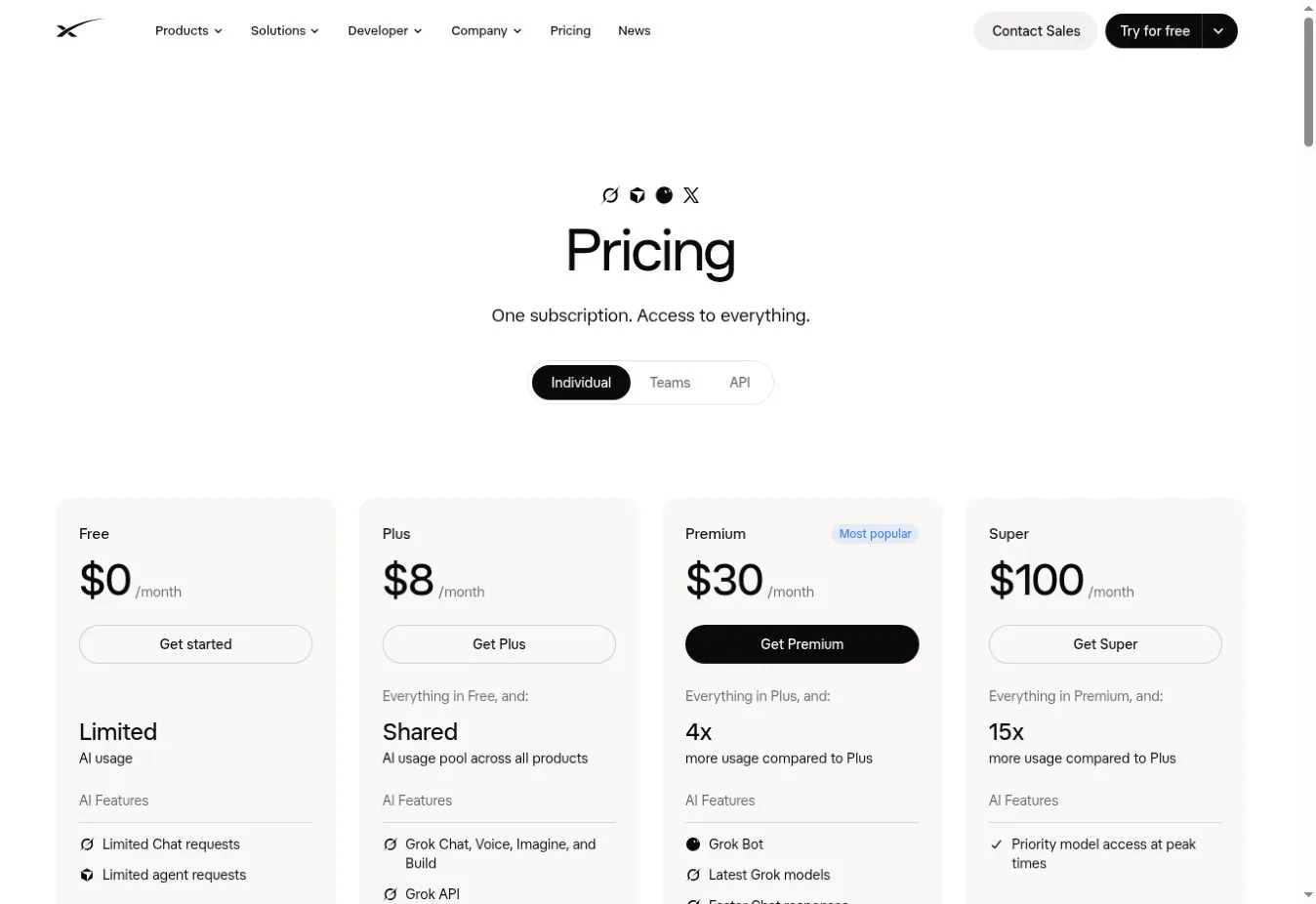
01 Choose the applicable subscription path first
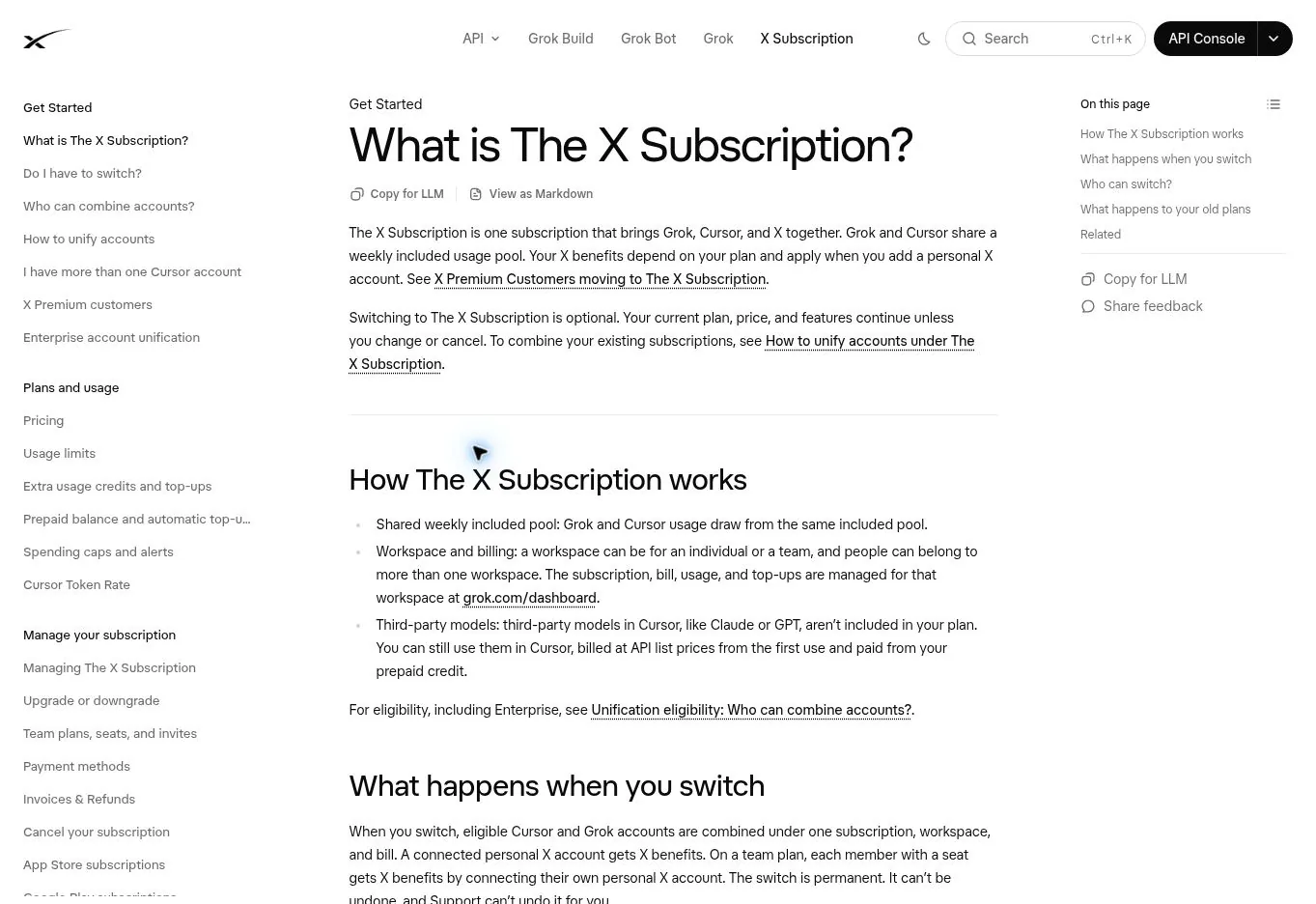
New users: start from the official pricing page
Open x.ai/pricing (external source, for reference only, not an endorsement), switch to the Individual plan and choose a paid tier; follow the prompts to create or sign in to an account and complete checkout, then connect the target personal X account. You can also enter through the subscription entry inside the official X product and follow the new plans shown on the page.
Path:x.ai/pricing → Individual → choose a tier → sign in / create an account → checkout → connect your personal X account.
Existing users: check your original billing first, then decide
First, in the original purchase channel, check your current plan, the purchase channel, the next renewal date and orders. Your legacy plan won't automatically ask you to buy again just because a new pricing page exists; whether to switch is your own choice. But note: once account integration is complete it cannot be undone, and cancelling the subscription won't restore the old account relationship.
If you already have a paid Cursor plan
Officially, you must start from Cursor's integration entry so that an existing Cursor account is included in the flow. X users without a paid Cursor plan can choose to upgrade from X's subscription settings; the switch flow that starts from X does not include Cursor, so confirm the coverage as the official prompts indicate.
02 New plan prices and how to choose
| Individual plan | Monthly list price | Annual paid list price | X benefits summary |
|---|---|---|---|
| Free | $0 | $0 | Standard X |
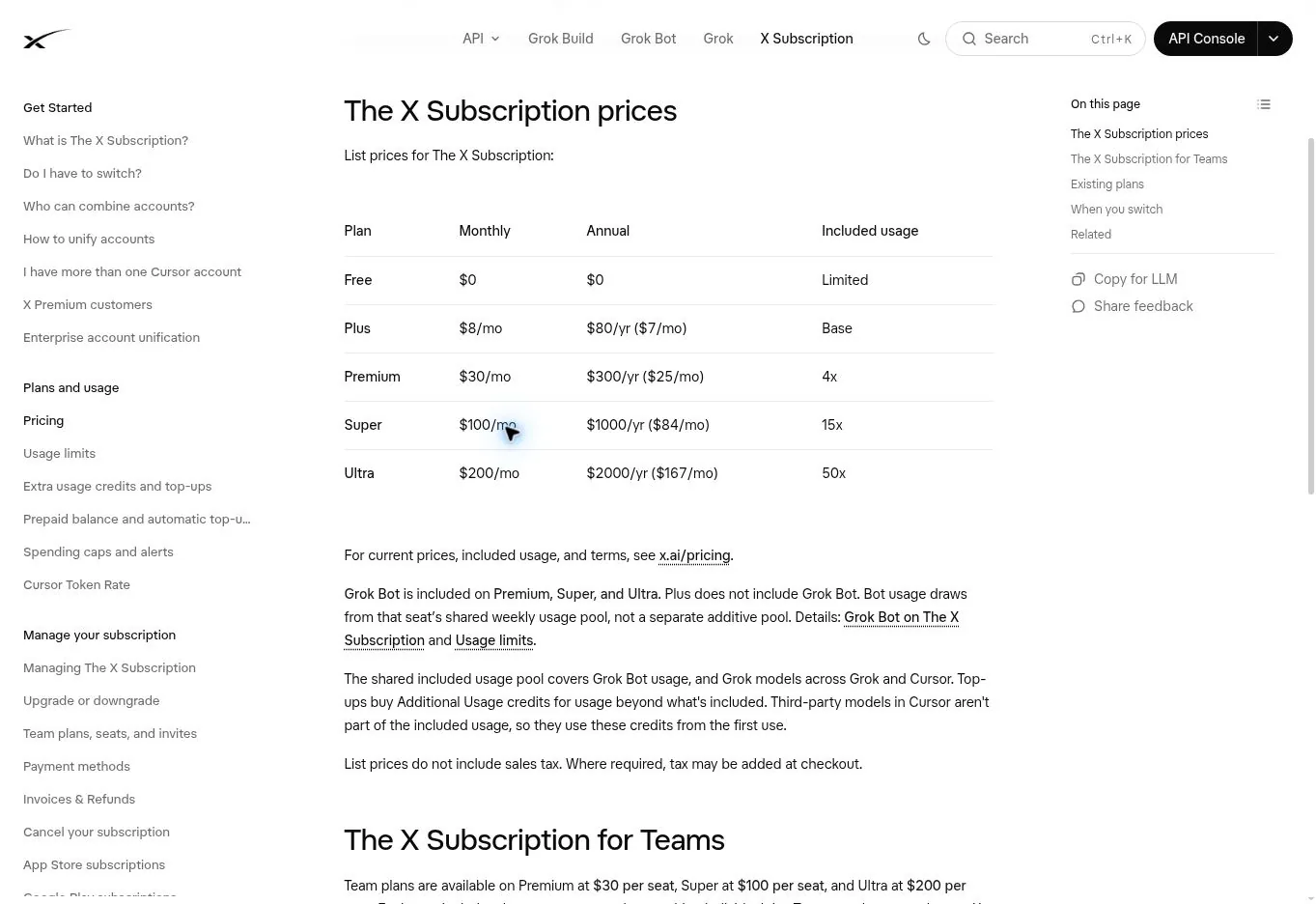
| Plus | $8 | $80 | Blue checkmark eligibility, creator tools, fewer ads |
| Premium | $30 | $300 | Full X Premium Plus benefits |
| Super | $100 | $1,000 | Same X benefits, higher AI usage |
| Ultra | $200 | $2,000 | Same X benefits, higher AI usage |
Prices in the table are official USD list prices, excluding applicable taxes; the annual figure is the yearly total paid in one go, not a monthly charge of that amount. The currency, promos, final total and next charge date on the payment page take precedence.
Mainly for X features: start with Plus
Plus includes blue checkmark eligibility, creator tools and fewer timeline ads. If you need the fuller X Premium Plus benefits, look at the new Premium instead. The main difference in Super and Ultra lies in benefits such as AI usage; there's no need to pick a higher tier just for the blue checkmark.
Also using Grok or Cursor
Choosing a tier also depends on your actual usage and product connections. Using third-party models may be billed separately, and a paid subscription doesn't mean all AI usage is unlimited and free.
Monthly or annual billing
If you want to confirm the card and features work for you first, choose the monthly billing the page offers; if you plan to keep it long-term, compare the annual total and the cancellation rules. The examples below are based on the new Plus at $8 per month, and don't apply to every region or legacy plan.
03 Before paying: virtual card and account details
Get the four details from the card details page
Go to the virtual card platform you use, pick the card you plan to use for the subscription, and on the card details page view the full card number, expiry, and CVC / CVV, and get the name and billing address that go with the issuing details. How and where to find them, see Where to find your card number, expiry and CVV and Where does the billing address come from. The CVC is not a login password, nor a text-message verification code.
Don't just look at the platform wallet balance
You need to tell three amounts apart: the balance of your account on the card platform, the spendable balance on the card, and prepaid credits on the merchant side. Prepare funds according to the total to be paid on the checkout page, while also accounting for issuer-side fees and possible authorization holds; annual billing must cover the yearly total. The card limit is a one-time total pool; see What does card limit mean.
Payment methods the merchant accepts
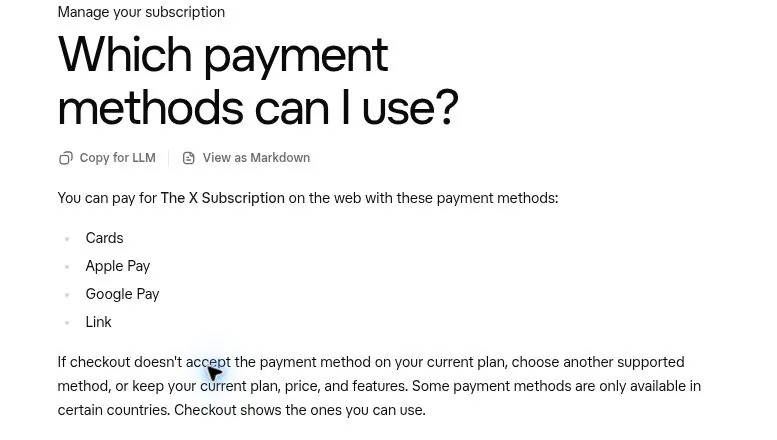
The new web experience supports cards, Apple Pay, Google Pay and Link; the exact options depend on the region and the checkout page. The card platform details should accurately match your actual billing information; if the card requires 3DS or bank verification, you must be able to complete it. When a payment is rejected, look into the reason first, and don't judge usability by repeatedly trying small amounts; see How long should you wait to retry after a decline.
04 Web subscription: sign in and choose a plan
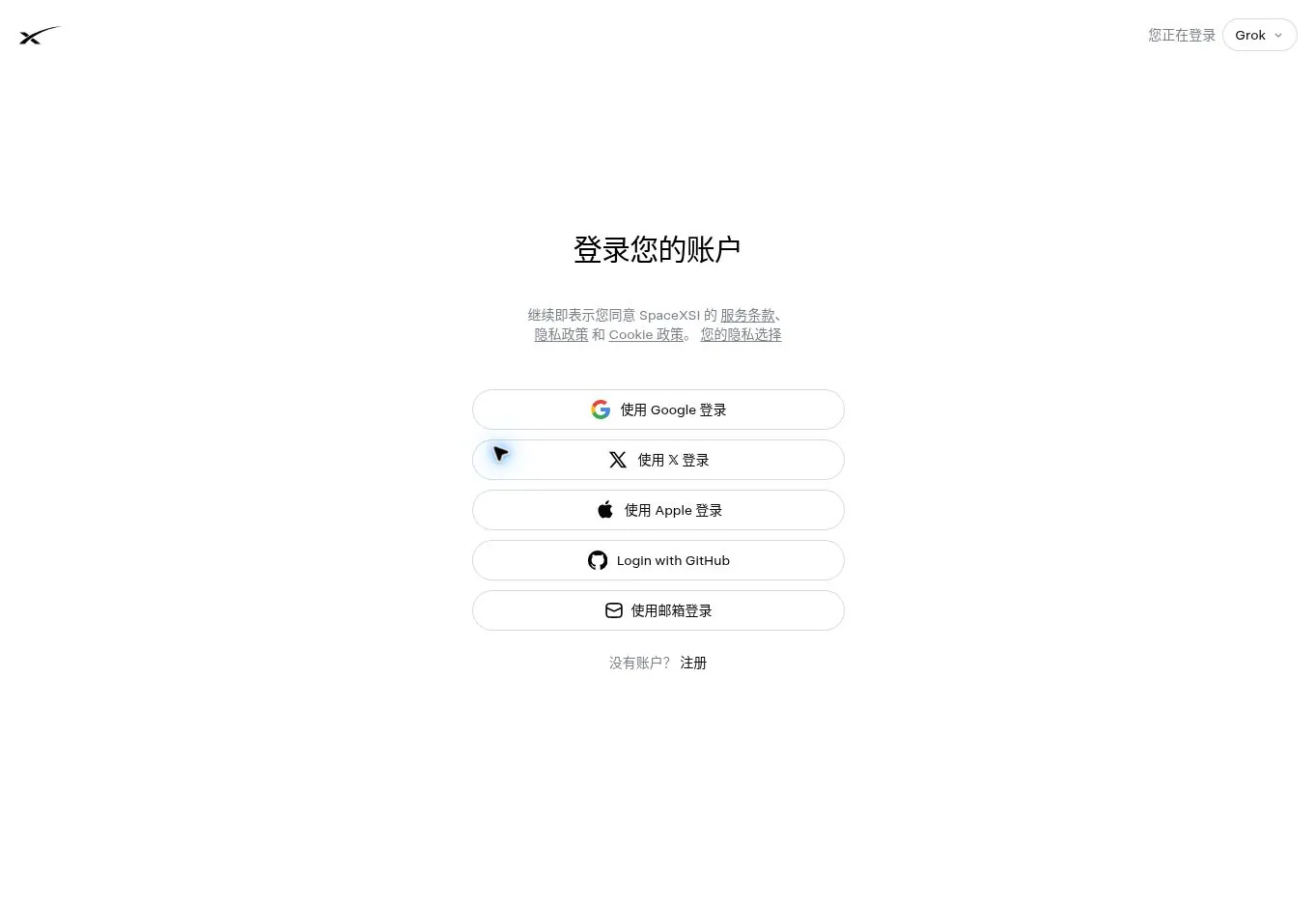
Step 1: Open the official entry
Visit x.ai/pricing, select Individual, and click the buy button on the plan you want; the button may read Get Plus or another plan name.
Step 2: Confirm the signed-in identity
Check the email and the current session so you don't end up using someone else's account; when you need to connect X, sign in to the personal X account you want the benefits on and confirm the username.
Step 3: Check the cycle and total
The monthly example is the new Plus at $8 and the annual example is $80; taxes and local payment options are shown on the checkout page at the time.
Step 4: Go to payment
After confirming the item, proceed to the official checkout page and choose the Card option the page currently offers.
05 Binding the virtual card: how the fields map
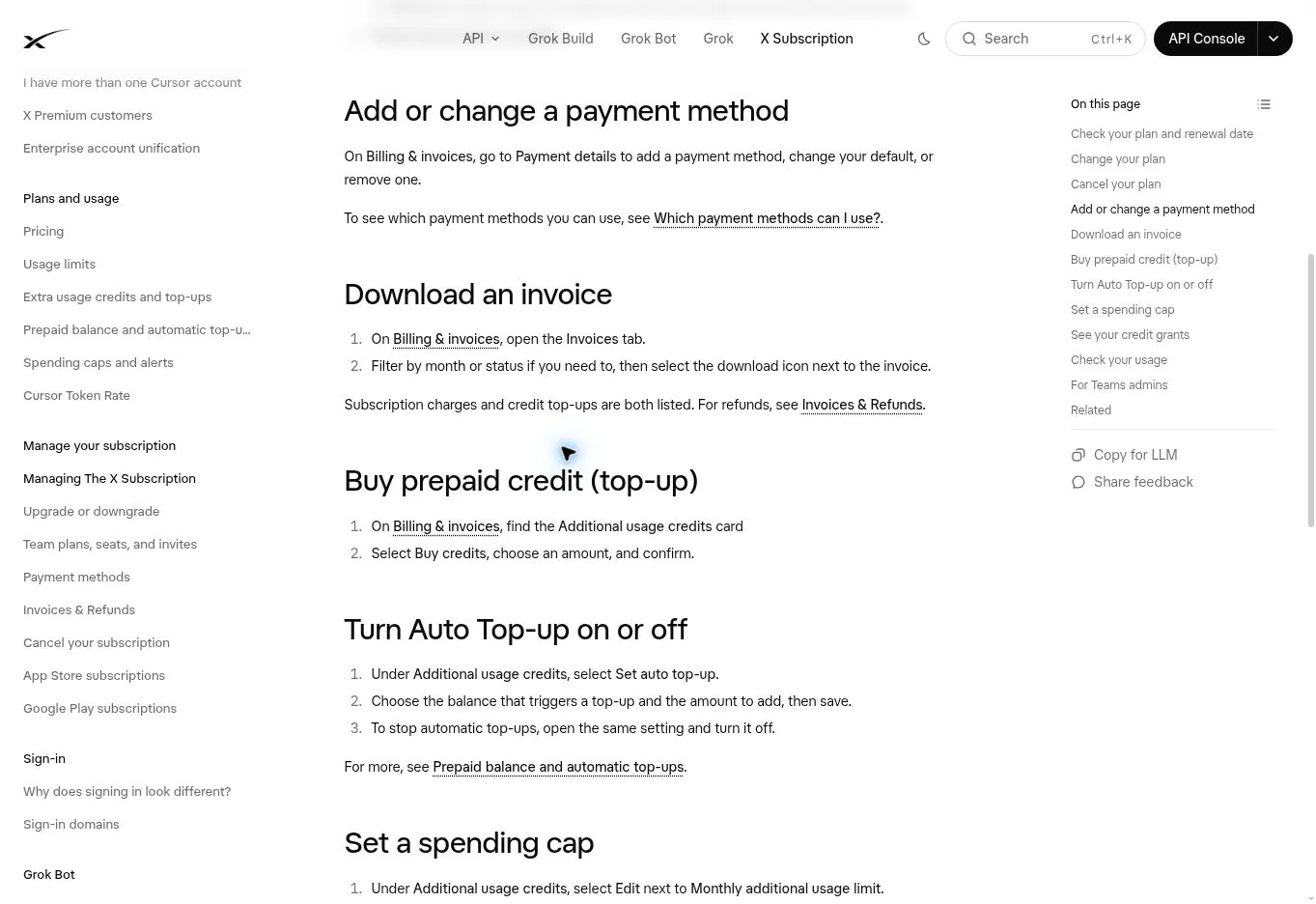
Binding on the web:sign in to the purchasing account → go to the checkout page for the selected plan → choose Card → fill in the card details → review this charge amount → confirm as prompted and complete bank verification.
Switching the card on an existing subscription:Billing and invoices → Payment details → add a new card → check the last four digits of the default card.
Fill in the fields one by one
- Card number: enter the full card number and check that nothing is missing from what you pasted.
- Expiration: enter the month and year in the format the page expects.
- CVC / CVV: enter the security code for the card.
- Name, Country, Billing address, Postal code: fill in using the issuing details and your real billing information; don't add fields the page doesn't ask for.
"Save" and "Pay" are two different things
During first-time checkout, after entering the card you usually still need to confirm the subscription; to switch the card on an existing subscription, add or update it under Payment details in billing and check the last four digits of the default card. Seeing only "card saved" doesn't mean this subscription has been paid for or is active.
06 First payment confirmation and bank verification
Check five things before clicking the button
Go through each item on the checkout page: what the product is, monthly or annual, whether the purchasing account is yours, the currency, and this charge total plus the renewal amount. Orders for annual billing, legacy plan switches or extra credits purchases should be reviewed separately, not lumped into one look.
Submit and complete verification
Click the subscribe / confirm-payment button actually shown on the page. If you land on the issuer's verification page, complete the required 3DS or code step and wait for the order result to come back. Not seeing a verification page doesn't mean something is wrong with the card; defer to the merchant's result. The verification behavior of our card BINs is explained in What does a no-3DS BIN mean.
What transactions may appear the first time
Distinguish the completed charge for this subscription from a Pending authorization hold. There is no uniform $1 verification charge or a fixed release time; if the card platform only shows an authorization in progress, check the merchant's order first, and don't immediately buy again. The difference between authorization and charge is explained in What is the $0 / $1 verification charge when binding a card.
Record the order number, amount actually paid, date and the card's last four digits. The $8 new Plus is an example pre-tax monthly price; issuer-side fees or exchange-rate differences should be checked separately against the card platform's transaction history.
07 Three things to check after payment succeeds
① Check the order and plan
Check the payment result in the original purchase channel. For new-style direct web payment, you can go to grok.com/dashboard/billing (external source, for reference only, not an endorsement) and check Current plan, Payment details and Invoices; when you bought through X or a store, check the bill via the matching entry.
② Check that the target X account is connected
The new-style benefits apply to the connected personal X account. If you've only finished payment but haven't connected the right account, troubleshoot the linked identity first, and don't buy another one. Organizational admin accounts and organization-affiliated accounts are not among the personal accounts that can be connected.
③ The blue checkmark doesn't appear instantly just because binding succeeded
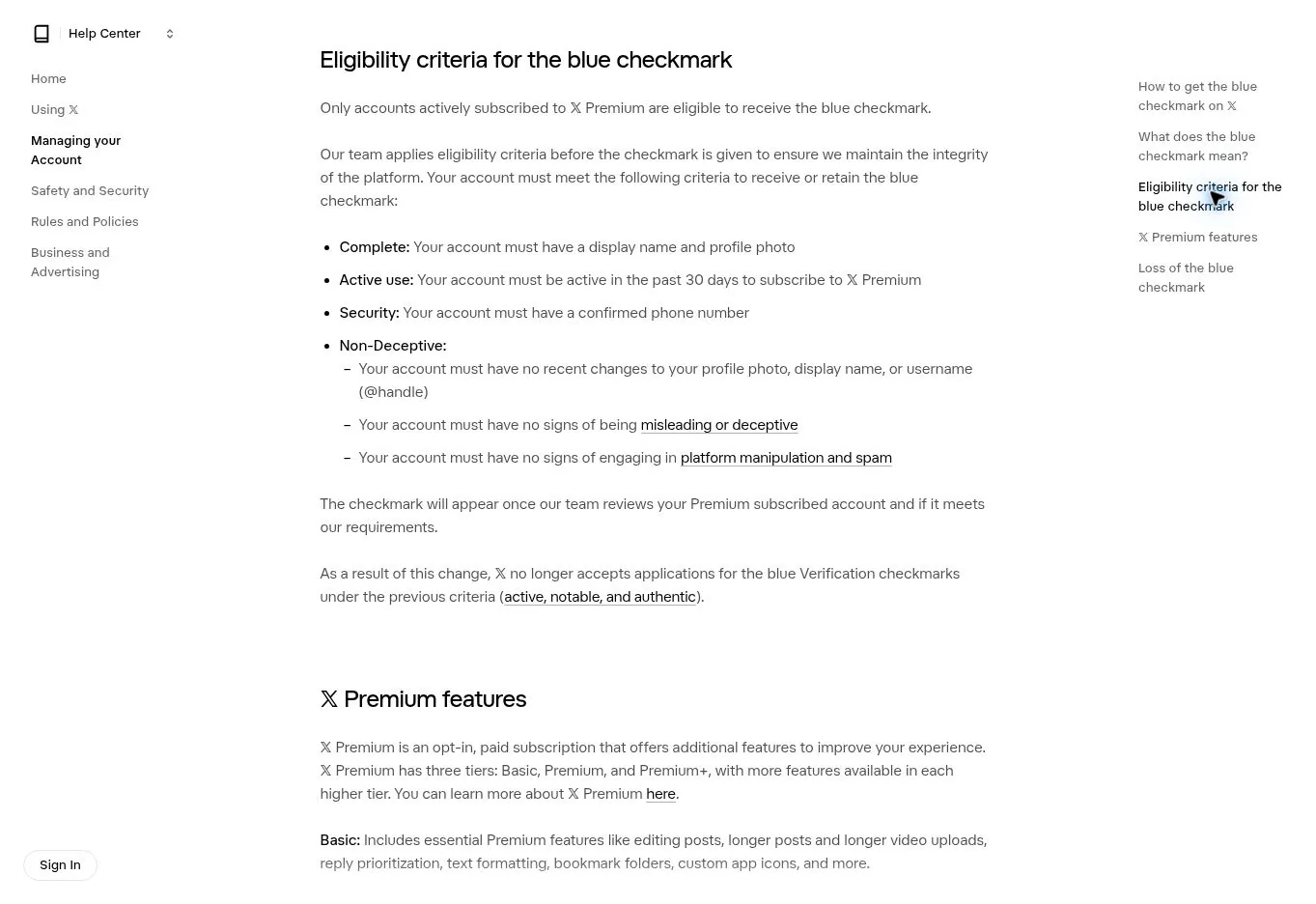
The blue checkmark also involves eligibility review: the account needs a display name, an avatar, a confirmed phone number, and usage history that meets the platform's requirements. Review may take several business days, and changing your details may trigger a re-review. Once you've confirmed the plan and general benefits are active, if the blue checkmark is still under review, save the order and check the official support guidance — don't keep paying repeatedly just because the blue checkmark doesn't appear right away.
08 Legacy Basic / Premium / Premium+ comparison
| Legacy individual plan | US web monthly | US web annual | Main differences |
|---|---|---|---|
| Basic | $3 | $32 | Basic features such as editing and longer posts; no blue checkmark |
| Premium | $8 | $84 | Blue checkmark eligibility, fewer timeline ads, etc. |
| Premium+ | $40 | $395 | More complete benefits, no ads in most placements, etc. |
This table is only for users with an existing legacy X Premium plan to understand their bills. The legacy prices above are still published officially; new subscribers should look at the new plans. Local prices, taxes, payment channels and actual orders may differ.
Legacy and new plans can't be compared by name alone
The legacy Premium at $8 and the new Plus at $8 differ in both naming and benefit path; the legacy Premium+ at $40 and the new Premium at $30 also can't be read as an automatic price change. Your original subscription stays as is, and is only handled per the confirmation page after you actively switch or change it.
How to keep the legacy plan
In the subscription management of the original purchase channel, check your plan and renewal date and keep a working payment method. If you're not switching for now, there's no need to subscribe again; change the card through the existing billing entry.
Ad and creator benefits
Legacy Premium includes reduced ads, and Premium+ provides a broader ad-free experience, but sponsored content may still appear. Creator revenue features have their own eligibility conditions; buying a plan guarantees neither income nor any fixed exposure results.
09 Switching for existing users and checking refunds
Where to start
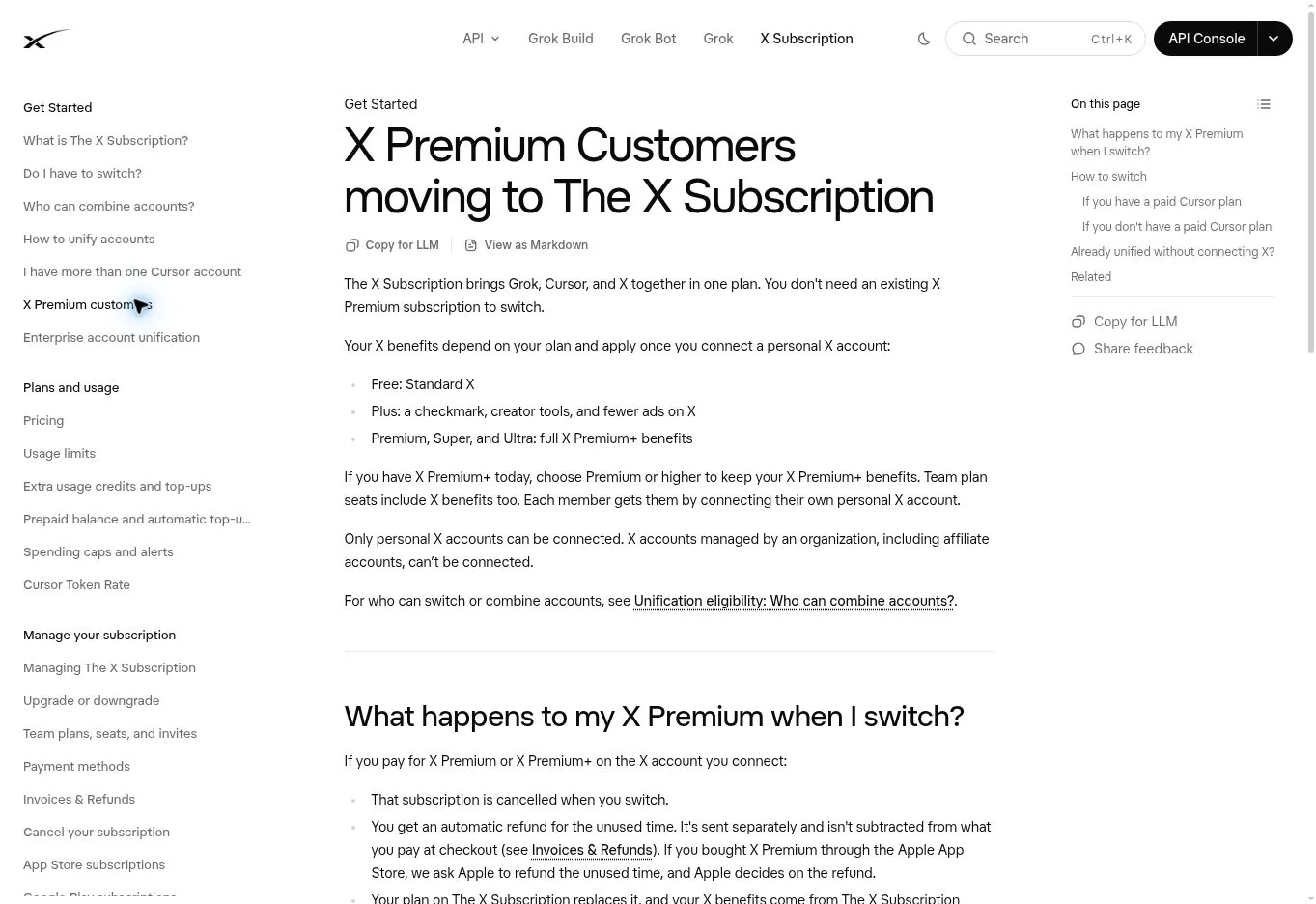
If you have paid Cursor: start from cursor.com/unify (external source, for reference only, not an endorsement) and connect the accounts to be integrated. If you don't have paid Cursor: choose to upgrade to a new plan in X's subscription settings, add a Grok account as prompted and check out. Verify the identity of every account before confirming.
New charges and legacy refunds are separate
During a switch the new plan is charged the full amount; for eligible legacy plans, a refund for unused time is returned separately to the original payment method, not deducted from this new order. When the refund lands depends on the bank or the payment provider. So don't just load your card with the difference of "new price minus the estimated refund".
Channel exceptions must be checked
Cursor subscriptions charged through Apple cannot be cancelled automatically during integration and must be managed separately in Apple; after switching, still check whether the original Google Play subscriptions are renewing; subscriptions for other accounts not included in the switch should be handled separately.
10 Mobile purchase: the virtual card is bound to the store account
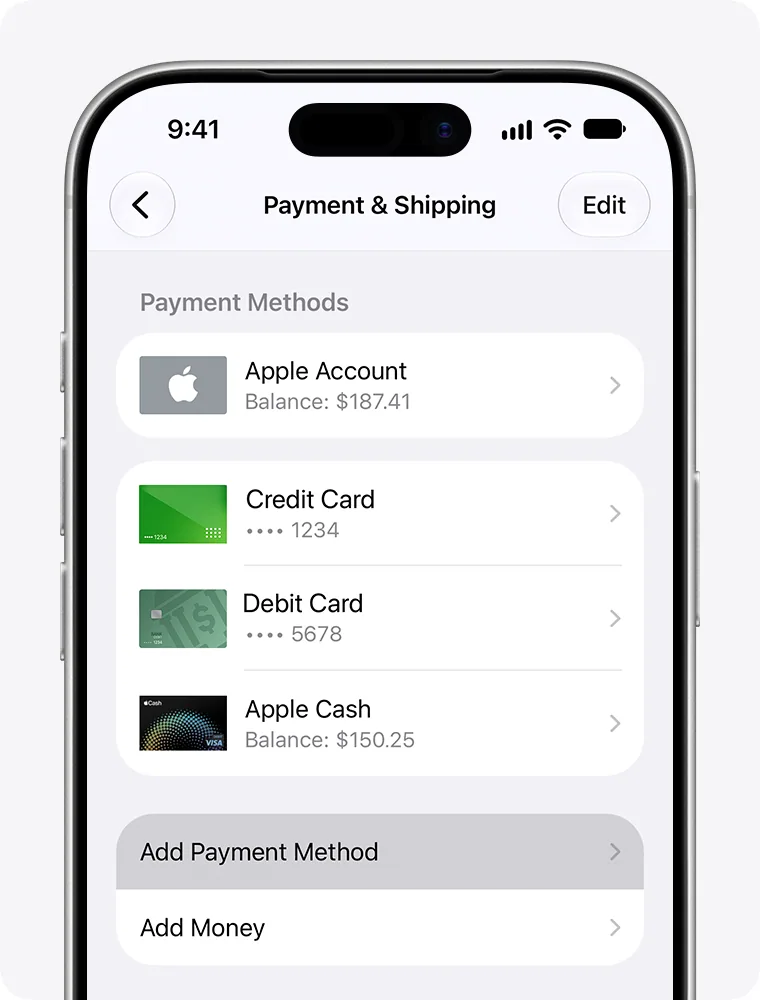
iPhone and iPad
Path:Settings → your name → Payment & Shipping → Add Payment Method.
Fill in the virtual card details and billing information among the available card options and save as prompted. Back in the official X app (or other apps that support subscriptions), choose the actually purchasable plan from the membership entry, and on the Apple confirmation page verify the item, cycle, total and purchasing account before confirming.
Android
Path:Google Play → profile avatar → Payments & subscriptions → Payment methods → Add payment method.
Add a card the page supports, go back to the official app and choose a plan, verify the Google account and the selected card on the Play purchase confirmation page, then submit and check the order.
Distinguishing new purchases from legacy plan switches
Brand-new users can purchase in the new subscription app that supports it, billed through the App Store or Google Play; users with an existing paid plan currently need the web to switch to a unified plan. Apple Pay / Google Pay on the web are payment methods, while store in-app purchases are a purchase channel, and their billing entries differ. Card and product availability depends on the store region and on-page conditions.
11 Renewals, credits and auto top-up
| Charge type | When it occurs | Where to check |
|---|---|---|
| Subscription renewal | Per the selected monthly or annual cycle | Current plan in the original channel's subscriptions |
| Manual credits purchase | Charged when you buy them | Additional usage credits and invoices |
| Auto Top-up | After enabling, when the balance drops below your set threshold | Auto top-up settings and the credits billing |
| Card platform fees | Per the issuer's current rates | The final transaction history on the card platform |
Renewal amounts can be affected by plan changes, taxes or price updates — don't only look at the first amount. Deleting the app, signing out of the account or closing the card are not substitutes for cancelling the subscription.
Membership renewals
Keep funds and a valid card based on the next charge date in your bill. If you want to stop before renewal, complete the cancellation in the original channel; see Expiry reminders and switching cards.
Topping up extra AI usage
Under the new plans, credits purchases are separate from subscription fees. Auto Top-up only runs after you enable and save it, triggers at the balance threshold you set, and charges the saved payment method. Using third-party models may also draw from credits — membership fees can't be read as "all-inclusive access to every model".
Spending caps and auto top-up are two different controls
The Monthly additional usage limit caps paid extra-usage spending; it isn't a cap on your total monthly top-ups, and top-ups themselves don't count against that usage cap. Check balance, auto top-up and the spending cap separately, and a reminder notification is also not a hard stop on usage.
12 Cancelling auto-renewal and changing the payment card
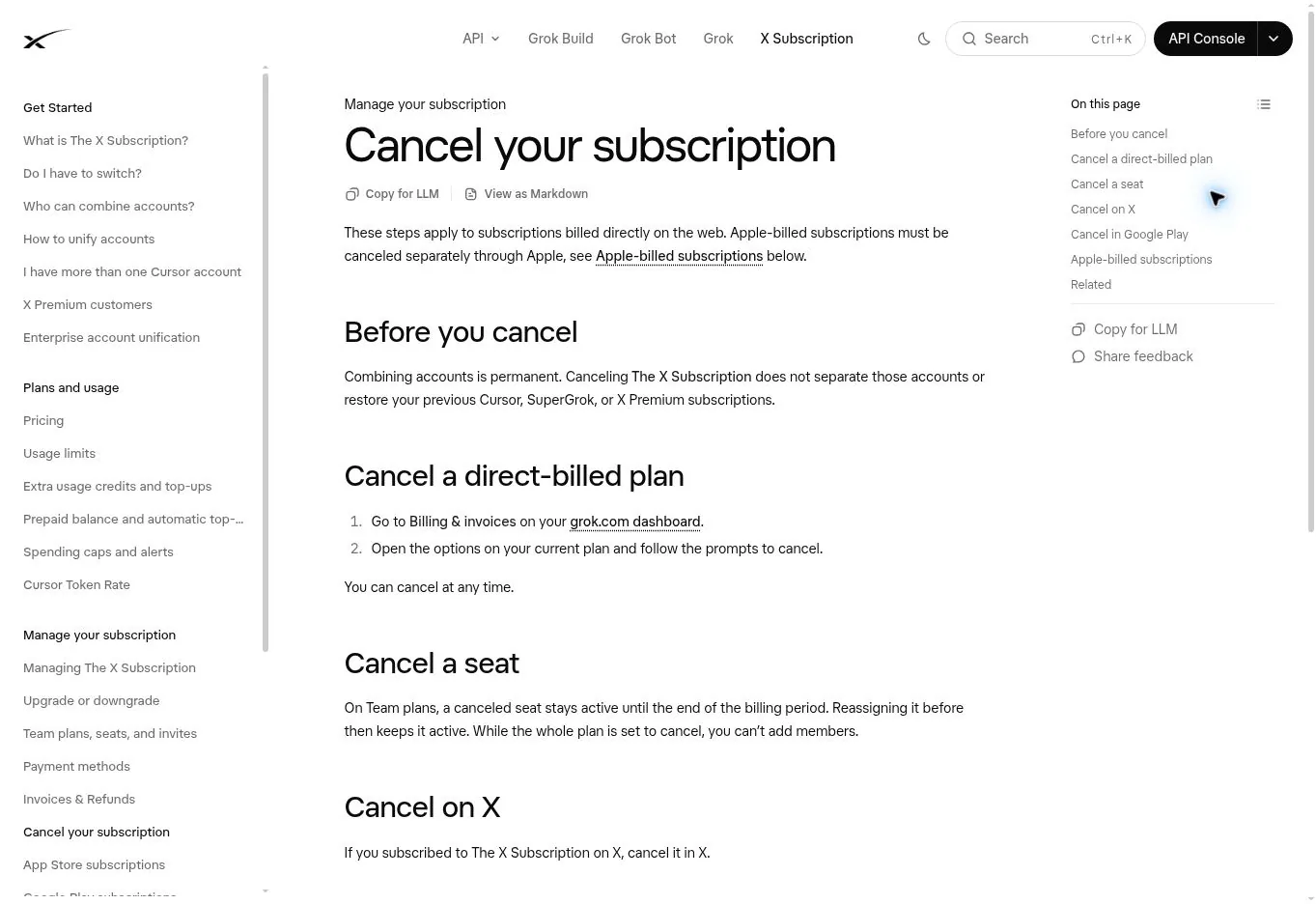
New-style direct web payment
Open grok.com/dashboard/billing (external source, for reference only, not an endorsement), choose cancel under the Current plan options and confirm it. If you bought The X Subscription through X, cancel it in X per the official instructions; if bought through Google Play, cancel it in Play. After cancelling, check the status and effective date.
Subscription lists on Apple and Google Play
Apple:Settings → your name → Subscriptions → the relevant item → Cancel Subscription.
Play:avatar → Payments & subscriptions → Subscriptions → the relevant item → Cancel.
Use the store account used for the original purchase; if you can't find the item, check your receipts first to confirm it wasn't actually bought on the web.
Users keeping the legacy plan
Manage it from the original subscription platform and complete the cancellation at least 24 hours before renewal, keeping the confirmation record. Cancelling doesn't automatically refund what you've already paid, and benefits continue per the rules until the end of the paid period. Officially, new plans also need to be cancelled at least 24 hours before renewal to avoid further charges.
Switching cards and stopping extra top-ups
On the new web experience, add a new card in Payment details and confirm the default one — switching the card only changes the payment details. To stop Auto Top-up, turn it off in the auto top-up settings under Additional usage credits; don't assume cancelling one service handles every payment switch.
13 Failure triage: status reference table
| Status you see | What to check first |
|---|---|
| Card declined | Card attributes, merchant permission, balance, address, verification result |
| Verification incomplete | The issuer's verification channel, the browser's return status |
| Pending authorization | Whether the merchant has a completed order, whether the card platform has settled |
| Payment succeeded but no X benefits | The purchasing account and linked X username, the plan tier |
| Subscription active but no blue checkmark | Whether you're eligible, whether review is still in progress |
| Duplicate charges | Whether a web, store or legacy subscription exists alongside |
This table is for triaging before acting: whichever row matches, only check the steps related to that row.
When declined, work from the transaction record
Save the error message and the time of the charge; first check whether the card is enabled, whether funds are on the card, whether online or merchant payment permission is on, and whether the billing details match. If necessary, have the issuer look into the decline reason; don't keep resubmitting before the problem is resolved. "Whether the transaction history shows a failed record" is the easiest triage signal; see Declined but no record in the transaction history and What to do in order after a declined payment.
First confirm what was actually charged
Tell apart subscription fees, credits purchases, auto top-ups, bank authorization holds and issuer fees. A completed order on the merchant side is the key evidence that the subscription has been paid; a Pending record on the card platform doesn't prove the membership is active.
Contact the right support channel
For new-style billing or linking issues, contact support through the official help entry and provide the account email, date, amount, currency, order number and last four digits; for legacy X Premium, contact @Subscriptions per the official FAQ; Apple / Play in-app purchase bills and refunds go through the respective store; official guidance is at Legacy X Premium subscription FAQ (external source, for reference only, not an endorsement).
14 Payment records and a completion checklist
| Item to record | Why it matters |
|---|---|
| X username | Benefits are tied to the account, so it must match when you double-check |
| Purchasing account or email | Decides where you'll cancel and where you'll find invoices later |
| Plan name and new/legacy version | Same-named tiers cost differently between new and legacy, so reconciliation must tell them apart |
| Purchase channel and billing cycle | Monthly / annual, web / store — decide the charge timing and the cancellation entry |
| Currency and amount actually paid | Check line by line against the card platform's history; the tax-inclusive amount is the real charge |
| Order or invoice number | The first piece of evidence when contacting support |
| Payment date and card last four digits | Pins down the exact transaction |
| Next charge date | Decides when to keep enough limit |
| Subscription and linking status | Confirms the benefits go to the target X account |
| Extra auto top-up status | Avoids charges continuing without your knowledge |
Fill these ten items once and you won't need to dig through records again, whether it's renewal reconciliation or contacting support.
Check off each item once done
- Payment complete: the order status matches the card's final transaction.
- Benefits active: the plan is correct and connected to the target X account.
- Renewal clear: you know the original purchase channel, the next charge date and the cancellation entry.
- Fees clear: you understand the difference between subscription fees, manual top-ups, auto top-ups and issuer fees.
- Records complete: receipts or invoices saved, sensitive info masked.
Two entry points for reconciliation
New-style web: Billing and invoices → Invoices, find and download invoices by month or status; store purchases: the original store's order records; card platform: check the final settled amount, exchange rate and issuer fees. Don't guess which service a charge is for just from the merchant name on the transaction.
Haven't opened a card yet: what to prepare to pay for X with a virtual card
X subscriptions have no special card requirements: a virtual card that can make normal purchases is enough. What you really need to prepare in advance is the card itself — registration, identity verification, top-up and opening a card, four steps.
| Step | What to prepare | Fee & time |
|---|---|---|
| Registration | Email + password, activation code | About 30 seconds, free |
| Identity verification | ID document + face, done once before your first card | About 3 minutes, free |
| Top up your account | USDT, only the TRC20 / ERC20 chains | $0 fee; minimum 20 USDT per deposit |
| Open a card | Pick a BIN and initial limit (minimum limit of 30) | Card fee from $1 + 3% service fee on the limit |
Top-ups only accept USDT; Alipay, WeChat Pay and bank cards are not supported — there is no alternative channel for this step.
Let's run the total cost: for a card with a limit of 30, the account is actually charged $31.90 (= 30 card limit + 30×3% service fee + $1 card fee), of which only $1.90 is a real fee — the remaining 30 is still your spendable limit. The complete breakdown of all four fees can be found in What is the total cost of using a card.
Each of the three steps has its own page: What documents are required to register and open a card, What is the minimum top-up, and Which deposit methods are supported.
Card BIN and billing address: the two things that decide whether a payment goes through
When an X subscription is declined, many people first suspect the card because it's virtual. But what the merchant actually reads are three things: the issuing country of the card BIN, merchant-category risk control, and whether the billing address matches the merchant's region. The card brand (Visa or Mastercard) is usually not the deciding factor.
| What the merchant reads | Who decides it | Do you need to act? |
|---|---|---|
| Issuing country of the BIN | The BIN selected when opening the card | Choose once when opening the card |
| Merchant-category risk control | BINs for subscription-type merchants are ready by default | No |
| Whether the billing address matches the merchant's region | Copy the entry from the card details page into the payment page | You must fill it in correctly when binding the card |
Of the three, only the third needs your own input when binding the card — so when a payment is declined, suspect the address first, not the card.
The entry for choosing the BIN and card type is in All Card Types Overview; what can block a payment when the address doesn't match, see Will the AVS billing address check block my payment; the rules for one card on multiple merchants, see How many merchants can one card be bound to.
How to triage a failed charge
A single charge has to pass three gates in sequence; a failure is definitely stuck at one of them — it isn't a matter of luck. Only the third gate leaves a trace on the card details page — so "whether there's a record in the transaction list" is itself the easiest triage signal.
| Gate | Who controls it | Shows in the spending records? |
|---|---|---|
| Gate 1 | Merchant front-end risk control; checks the account and network environment, not the card | No |
| Gate 2 | Card network and payment channel; checks the card number format and whether the BIN is valid | No |
| Gate 3 | Card-side balance, permissions and billing address checks | Yes |
If the first two gates reject the payment, switching cards won't help; if the third does, the things to change are on the card side.
For a finer triage and the order of action, see Why AI subscription payments fail, What to do first when something goes wrong and Card BIN blocked by a merchant; whether a decline costs money, see Does a declined payment incur fees.
Manage this card: limits, renewals and card swaps
Once you're subscribed, the things that actually go wrong are "no money left on the card at renewal" and "can't find the entry when I want to switch cards". Both can be handled in advance.
| What to handle | How | Relevant rule |
|---|---|---|
| Keep enough limit before renewal | Top up early based on the next charge date, leaving headroom for tax-inclusive amounts | The card limit is a one-time total pool, not reset monthly |
| Switch to another card for payment | Add a new card in payment details and confirm the default | Changing cards only changes payment details, not the account |
| Pause using this card | Use the freeze feature instead of deleting the card | How to freeze a card |
| Get a new number before expiry | Follow the reminder and switch cards so renewal doesn't land on the old number | Do virtual cards expire |
Insufficient limit is the most common kind of subscription charge failure — and it's usually not about "having no money" but not factoring in tax; see Why does a $20 subscription charge $21+.
How many cards an account can open and how long a deposit takes, see How many cards can one account open and How long does a deposit take to arrive. When you want your balance back, read the rules in Refund policy: how to withdraw account balance.
FAQ
Can I subscribe to X Premium with a virtual card?
Yes. This particular pipeline has no special card requirements: a virtual card that can make normal purchases is enough. But officially, "major credit and debit cards are supported", and that doesn't guarantee every virtual card, prepaid card or any particular BIN will succeed — so what actually decides the outcome is the BIN, the billing address and the merchant's verification, not the label "virtual card".
The new Plus and the legacy Premium are both $8 — are they the same plan?
No. The legacy Premium at $8 and the new Plus at $8 differ in both naming and benefit path; the legacy Premium+ at $40 and the new Premium at $30 also can't be read as an automatic price change. When reconciling, first confirm the plan name and the new/legacy version, then compare amounts.
Payment succeeded but the blue checkmark hasn't appeared — did I not subscribe?
No. Payment succeeding, benefits being activated and the blue checkmark appearing are three things that don't happen in sync. The blue checkmark also has to pass an eligibility review (display name, avatar, confirmed phone number, usage history), which can take several business days. Once you've confirmed the plan is active, save the order and check the official support guidance — don't keep paying repeatedly.
When I switch to a new plan, what happens to the unused money on the legacy plan?
The new plan charges the full amount, and for eligible legacy plans a refund for unused time is returned separately to the original payment method — it isn't deducted from this new order. So don't just load your card with the difference of "new price minus the estimated refund".
When buying in a mobile app, where does the virtual card get bound?
It gets bound to the store account: on iPhone use Payment & Shipping in Settings, on Android use Google Play payment methods. Once the card is bound to a store account, the same card won't automatically be saved on the web; the two also have different billing entries.
Can I try again right away after a decline?
Not recommended. First save the error message and the time of the charge, then check whether the card is enabled, whether funds are on the card, whether payment permission is on, and whether the billing details match. Repeated submissions before the problem is resolved change no input, and you shouldn't judge usability by repeatedly trying small amounts.
What's the most common cause of renewal failures?
Insufficient limit. And it's usually not about "having no money" but not factoring in tax: list prices are usually pre-tax, so the actual charge is a bit higher, and the card limit is a one-time total pool that isn't reset monthly. Top up in advance based on the next charge date and include headroom for taxes.
Does cancelling a subscription automatically refund it?
No. Cancelling doesn't automatically refund what you've already paid, and benefits continue per the rules until the end of the paid period. To avoid the next charge, complete the cancellation at least 24 hours before renewal and keep the confirmation record.
If I combine X, Grok and Cursor into one subscription, can I split them apart later?
This kind of cross-product account integration is usually irreversible, and the charges and refunds on both sides settle separately: after switching, the new plan charges the full amount, and the unused part of the legacy plan is returned separately to the original payment method — not automatically offset. Only do it when you're sure you want this integration long-term, and confirm each product's current subscription status item by item before switching.
Open a card and get your X subscription started
Cards from $1, no monthly fee; account top-ups at zero handling fee, minimum 20 USDT per deposit, on-chain only via TRC20 / ERC20.