
Step 1: Sign in to your personal Google account
Open gemini.google.com (external source, for verification only, not an endorsement) or the official Google One plan page. Click to sign in and use the personal Google account you plan to subscribe with.
Enter your email or phone number in the Email or phone field, click Next, then enter your password and complete verification as the page prompts. After signing in, check the account in the top-right corner to avoid subscribing to the wrong account.
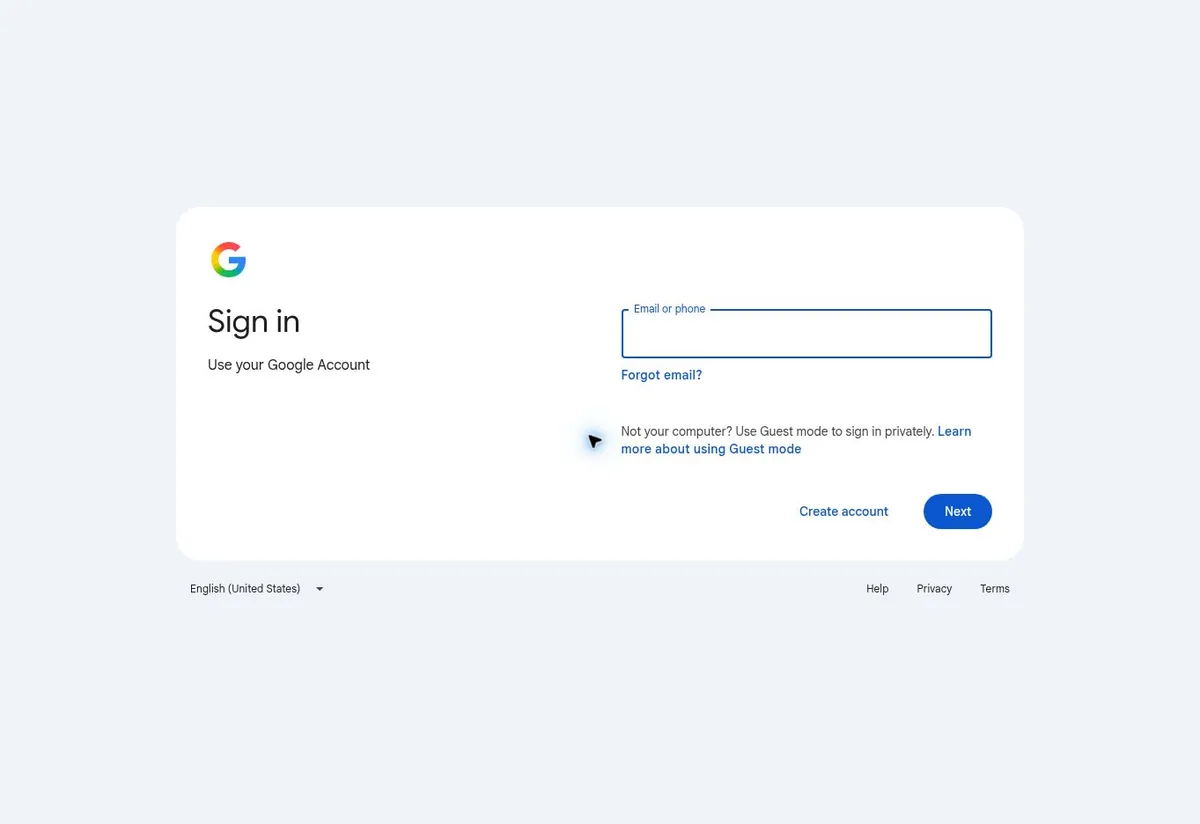
Eligibility: personal accounts in regions where the service is available. The official list of available regions does not include mainland China; overseas Chinese users should judge eligibility by their real place of residence and payment details. A payment card cannot change account or regional eligibility.
Step 2: Choose the Google AI Pro plan
After signing in, enter through Gemini's upgrade entry, or open the Google One plan page: one.google.com · Google AI plans (external source, for verification only, not an endorsement).
Find Google AI Pro and click Get Pro. If monthly or annual billing is shown, choose per your needs and confirm the billing cycle. The example in the example is the US standard monthly plan at $19.99.
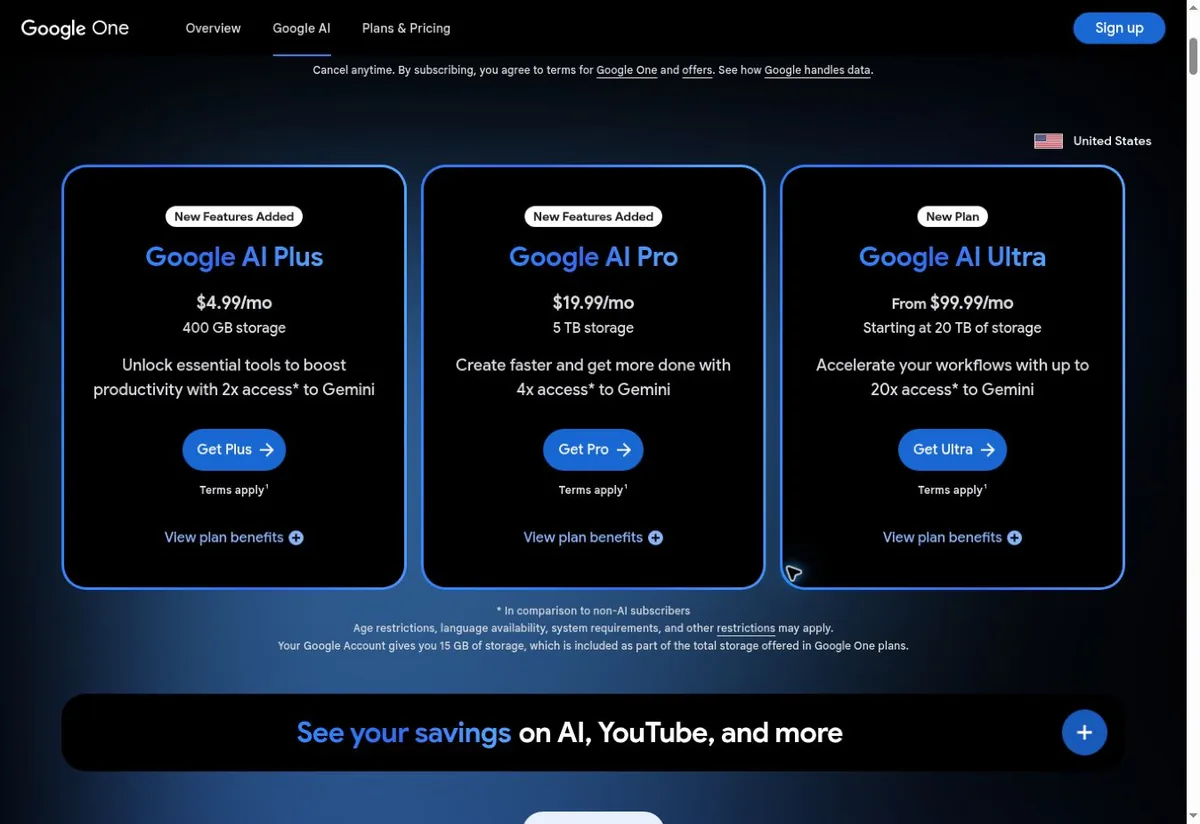
Review the price, tax, first payment date and next renewal date actually shown on your account before continuing. The region selector on the public display page only switches the display content and does not change the account's payment country; currency, prices and available benefits in other countries may differ.
If your account shows a trial, verify the renewal amount and date after the trial ends; trial offers depend on account eligibility and cannot be assumed for every account. Don't choose a plain Google One storage plan merely by storage capacity — before purchasing, confirm the plan name includes Google AI Pro. When upgrading an existing membership, go by the adjusted amount and effective time shown on the account.
Step 3: Fill in the payment information against your PIKABAO card details
In the payment method, choose to add a credit or debit card; if a card already exists, check the last four digits of its card number before deciding whether to use it. The payment fields correspond one-to-one with the PIKABAO card face:
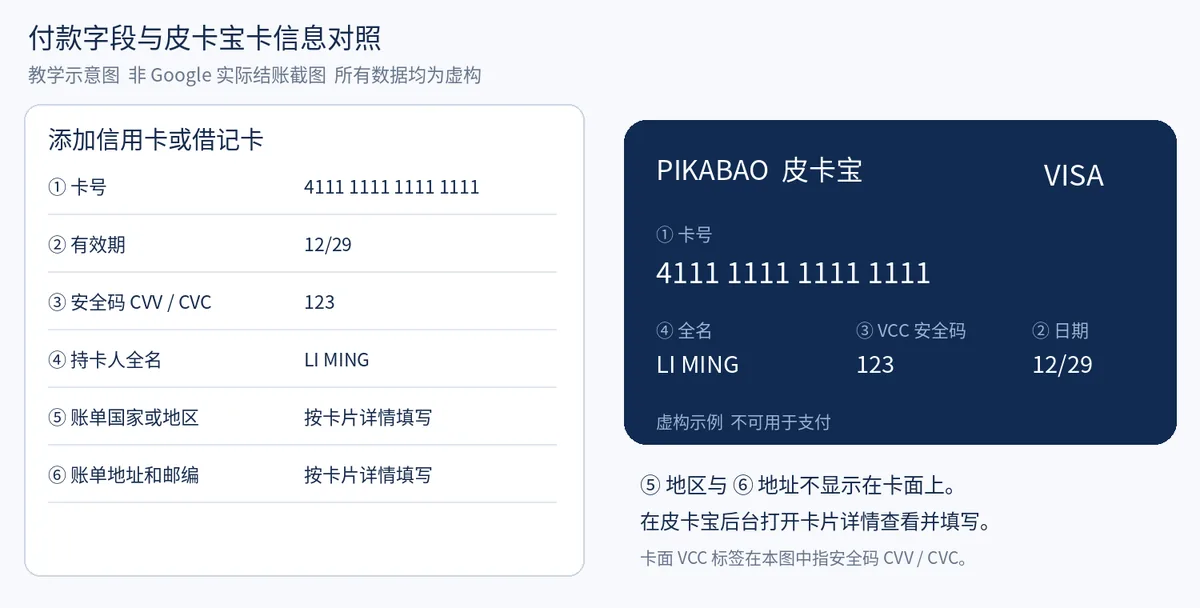
Enter the real card number, expiry, security code and cardholder full name from your PIKABAO console into the matching fields. The expiry is usually entered as MM/YY; don't enter a text-message verification code into the security code field.
Billing country or region, street address, city, state or province and ZIP/postal code can be viewed under Card details in your PIKABAO console; fill them in field by field as the payment page asks — don't make up an address or copy the example address. How to get them, see Where to find your card number, expiry and CVV and Where does the billing address come from; what can block you when the address doesn't match, see Will the AVS billing address check block a payment.
Use a card that PIKABAO currently supports for this merchant and recurring subscription charges. Whether the card can be bound, pass verification and complete the charge still depends on the specific card, the issuing bank and Google's review; no guarantee applies to all card families.
Step 4: Confirm the payment and wait for the subscription to activate
After saving or selecting the payment card, return to the subscription confirmation page. Verify Google AI Pro, the current account, the billing cycle, the amount and currency due, and the last four digits of the payment card.
Read the subscription terms and the auto-renewal explanation. Once everything is confirmed, click Subscribe; if the page asks for issuer verification, complete it using the verification method the card actually provides.
Wait for Google to show the subscription as successful, then return to Gemini and refresh the page. Don't keep resubmitting while the payment is processing; first check whether a successful order already exists.
Step 5: Confirm the membership and the payment records
Open Google One, view Manage membership or plan details, confirm that Google AI Pro is shown, and note the next payment or expiry date. Feature entries inside Gemini may vary by region, language and version.
Check the order or subscription confirmation email Google sends to the current account's inbox; you can also view transactions in the activity record at Google Payment Center (external source, for verification only, not an endorsement) or in Google Play's subscriptions and order records.
Check the transaction record of the corresponding card in your PIKABAO console and verify the merchant, amount, currency and transaction status. Check the card authorization record and the Google membership status separately; seeing an authorization alone doesn't mean the membership is activated.
Suggested records to keep: Google plan details, renewal date, order number or receipt, and the PIKABAO transaction record. When sharing records, mask the full card number, security code, address and other personal details.
Stop auto-renewal
Web version: Gemini → Settings and help → Manage subscription → Google One settings → cancel membership; complete the confirmation and keep the cancellation receipt. Subscriptions purchased through the App Store should be cancelled in Apple's subscription management. Cancellation usually keeps your benefits until the end of the current billing cycle; go by the prompts on your account.
Deleting the PIKABAO card or leaving the card balance insufficient does not replace cancelling the subscription in Google.
What to do when a payment fails: four types of troubleshooting
Incorrect information: check the card number, expiry, security code, name and console billing address one by one. When the page asks for verification, complete it as prompted and don't change it to fake details.
Balance or card restrictions: check whether the card's available balance covers the checkout amount, taxes and applicable PIKABAO fees, and confirm the card status and merchant support scope.
Google says the region or payment details don't match: check the eligibility of your real account and payment details and use official help. Selecting the US on the public display price page does not mean you get US-region subscription eligibility.
Charged but not activated: first check the signed-in account and the Google order status, then provide the order number, time, amount and masked screenshots to Google support. For card transaction issues, contact PIKABAO support — never send the security code. When you receive a decline or risk-control notice, stop repeating the payment first, investigate the cause, then act; the official entry to change the payment method is Google One → Settings → Change payment method.
No card yet? Open one first: what to prepare to open a card
| Step | What to prepare | Fee and time |
|---|---|---|
| Registration | Email + password, activated by verification code | About 30 seconds, free |
| Identity verification | Submit genuine identity details under current first-issuance requirements; configure two-step verification separately | Subject to the actual review status and published terms |
| Two-step verification | Configure Google Authenticator as prompted to protect the account with time-based codes | Separate from identity verification; not a substitute for identity review |
| Account top-up | USDT, TRC20 / ERC20 networks only | $0 fee; minimum 20 USDT per deposit |
| Card opening | Choose a card range and initial limit (minimum limit 20) | Issuing fee from $1 + 3% service fee on the limit |
To open a card with a limit of 30, the account is actually charged $31.90 (= 30 of card limit + 30×3% service fee + $1 issuing fee); of this, only $1.90 is really taken as fees, and the remaining 30 is still your spendable limit. The full list of the four charges, see What does using a card cost in total; the fee rates are on Pricing.
Basis and maintenance
The images are self-made scene illustrations; no real bank card data was used and no membership was actually purchased, and the illustrations are not labeled as official screenshots. Date verified 2026-10-12. Prices, button text, eligibility conditions and benefits may be updated; always go by the official pages shown on your own account when operating.
Fee basis, per the site's current rules: account top-up fee $0, card top-up fee flat 3%, issuing fee from $1, minimum 20 USDT per deposit, and the minimum total spend to open and fund a card is $21.6 (minimum card limit $20 + $1 issuing fee + $0.60 service fee). Billing and eligibility on the Gemini side follow the latest official statements. Related tutorials worth continuing with: the ChatGPT Subscription Guide, the Claude Subscription Guide, the Binance USDT deposit guide, the OKX USDT deposit guide and the Coinbase USDT deposit guide; the full answer index grouped by topic is in FAQ, and card selection and fees are on All card types overview.
Frequently asked questions
What is Gemini Advanced called now?
The current official purchase entry shows plan names such as Google AI Pro; Gemini Advanced is the older name people still use. Google AI Pro example pricing: US standard monthly plan at $19.99, purchased via the Google One plan page.
If I select the US on the public pricing page, does that mean I'm eligible for a US-region subscription?
No. The region selector on the public display page only switches the display content and doesn't change the account's payment country; subscription eligibility is judged by the real account and payment details, and a payment card cannot change account or regional eligibility.
How much is Google AI Pro per month? Are taxes extra?
The US standard monthly plan is $19.99; the listed price usually excludes taxes, and the actual charge goes by the checkout confirmation page. Reserve card limit at the tax-inclusive amount, and leave a little more headroom for catch-up charges on unpaid balances.
Where can I see receipts for the Gemini subscription?
Google sends a confirmation email to the current account's inbox; you can also view transactions in the activity record of the Google Payment Center, or in Google Play's subscriptions and order records. These records must be checked separately from the PIKABAO card transaction record.
Does Gemini ask for an address when binding a card? What if it's not on the card face?
Yes. The billing country or region and the address are not shown on the card face; open Card details in your PIKABAO console and fill them in field by field as the payment page asks — don't make up an address. A mismatched address may be blocked by the AVS check.
Gemini charged me but the membership isn't active — what should I check first?
First check the signed-in account and the Google order status, then see whether the plan details show Google AI Pro. Check the card authorization record and the membership status separately; if the charge succeeded but the membership still isn't active, contact Google support.
Where do I cancel a Gemini subscription bought through the App Store?
Cancel it in Apple's subscription management; on the web, go Gemini → Settings and help → Manage subscription → Google One settings → cancel membership. Deleting the PIKABAO card cannot replace cancelling the subscription.
Is it reliable to subscribe to Google AI Pro with a virtual card?
On a card range that supports this merchant it's a standard scenario: when the card range issuing country, the merchant category and the billing address are aligned, subscription payments generally go through smoothly. Whether it passes still depends on the specific card, the issuing bank and Google's review.
The amount charged on renewal day was higher — is the platform overcharging?
First check taxes, the end of a promo or trial, the annual billing cycle and benefit adjustments. The difference is not a fee collected by the platform; it's tax added to the bill by the Google side, or the regular price restoring after a promo expires.
Open a card and get your Gemini Advanced subscription started
Opening a card costs from $1 with no monthly fee; top-ups accept USDT only. Google AI Pro needs about $21.60 of card balance for a $19.99 month plus tax.