
Step 1: Sign in to Midjourney and find the subscription entry
Open midjourney.com (external source, for verification only, not an endorsement) (the official Midjourney site), click Log In, and sign in with Google or Discord as offered on the page. If you already have works, use your original account; don't create another account just to buy a plan.
The subscription entry is on the Manage Subscription page — midjourney.com/account (external source, for verification only, not an endorsement) — where you'll find the plan area.
Path:midjourney.com → Log In → Manage Subscription → choose a plan.
Step 2: Choose a plan and billing cycle
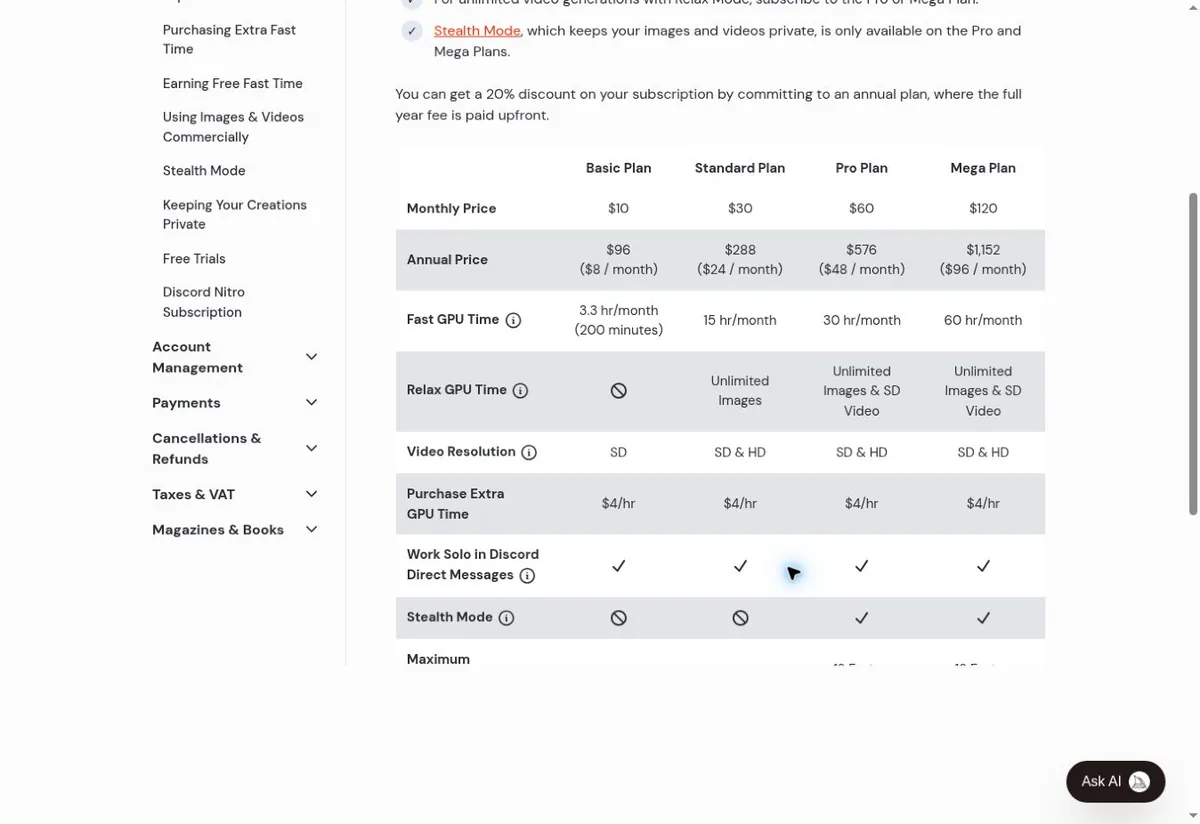
The official subscription page defaults to annual billing. If you want to be charged monthly instead, switch to Monthly Billing first, then click Subscribe. Annual billing pays the full year in one go; it is not a prorated amount charged every month.
| Plan | Standard monthly | Annual or promo notes | Use case |
|---|---|---|---|
| Basic | $10 | $96/year | Entry level and light generation |
| Standard | $30 | $288/year | More usage and image Relax mode |
| Pro | $60 | $576/year | More usage and Stealth privacy mode |
| Mega | $120 | $1152/year | Heavy generation and more GPU time |
The prices are illustrative data made up for the image, used only to explain the plan tiers and billing cycle; actual unit prices, taxes, existing-plan credits and account discounts are all settled on the confirmation page for your own account at the time.
Standard and above include image Relax mode; Stealth privacy mode is only available on Pro and Mega — paying doesn't make your works private by default, you need to enable the relevant feature in an eligible plan. First-time individuals can start with Basic; compare Standard if you generate images often. Extra Fast GPU time is a separate purchase item; a subscription does not mean unlimited generation time. Commercial use by companies with annual revenue over US$1 million requires Pro or Mega, subject to the applicable terms of service.
Step 3: Fill in the payment details by matching your PIKABAO card info
Click Subscribe under the plan you chose to enter the official Stripe checkout page. Verify the Billing email used to receive receipts; it may differ from your login email. The payment form fields map one-to-one onto your PIKABAO card face:
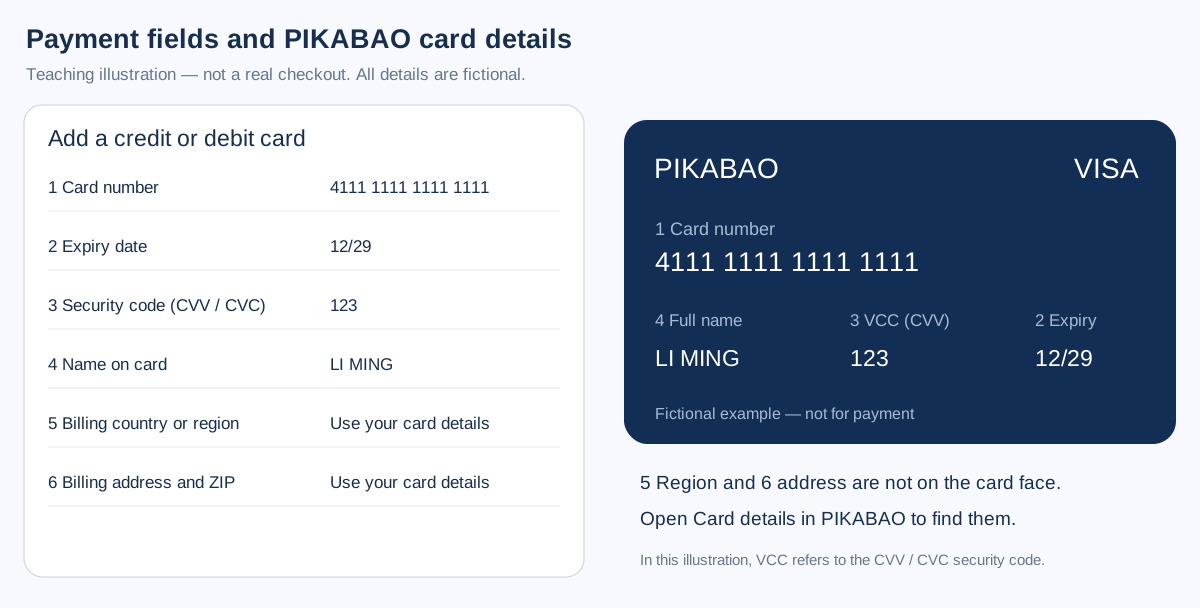
Copy the real details from your PIKABAO backend one by one and verify the last four digits of the card number: Card number → Card number; Expiry → MM/YY; Security code → CVV / CVC (the VCC label on the card face refers to the security code); Full name → Name on card.
Region and address are shown in card details in the PIKABAO backend; fill in Billing country, Street address, City, State / Province, ZIP / Postal code as actually required; don't invent an address or copy the tutorial's example. For where to find the card number, expiry and security code, see Where to find your card number, expiry and CVV; for where the billing address comes from, see Where does the billing address come from; for what can block you when the address doesn't match, see Will the AVS billing-address check block my payment.
Choose a PIKABAO card that currently supports this merchant and subscription renewals. Whether Stripe checkout passes depends on the specific card, bank and merchant review; no guarantee that all card families work.
Step 4: Pay and confirm the subscription succeeded
The subscription page preselects annual billing, which charges the whole year at once (Basic $96, Standard $288). Switch to Monthly Billing before clicking Subscribe if you only want one month.
If issuer verification appears, complete it in the way your card actually supports. Wait for the success state; don't keep resubmitting while the payment is processing — first check the account orders and the card transactions.
After payment succeeds, return to Manage Subscription, confirm the plan shows Active, and check the available GPU time.
Step 5: Confirm membership and keep the payment receipts
The Stripe confirmation email includes the invoice and receipt, sent to the billing email you entered at checkout; you can also go into billing management from the Manage Subscription page to view records. For the official explanation of the subscription flow, see Midjourney Official Help · How to subscribe (external source, for verification only, not an endorsement).
Find this card's spending records in the PIKABAO backend and check the merchant, amount, currency and status. Temporary authorizations, pending charges and the platform membership becoming active must be confirmed separately; don't assume membership succeeded just because you see a charge on the card.
Turn off auto-renewal
Manage Subscription → Cancel Plan, confirm as the page prompts, and check when the cancellation takes effect. Keep the confirmation email after cancelling; refund eligibility is judged separately under the official policy.
Deleting the PIKABAO card, insufficient balance, uninstalling the app or signing out do not replace formally cancelling the subscription on the platform. If you purchased through an app store, manage renewals in the original purchase channel.
Payment failed or membership not showing: four categories to check
Incorrect details: verify the real card number, expiry, security code, name and the backend billing address. Fill in only the actual fields; don't put a verification code into the CVV.
Card or balance issue: confirm the card status, that the available balance covers the actual order plus applicable fees, and that the card currently supports this merchant. If the bank or merchant declines, stop retrying and investigate the reason.
Charged but not activated: check the login account, the current workspace, the order status, and whether the final activation completed. Provide the order number, time, amount and a redacted screenshot to the platform's official support; for card issues contact PIKABAO customer service — never send your security code.
Renewal amount changed: check taxes, the end of a promo, the annual cycle, additional usage, and seat or credit purchases. Refunds must be requested per the merchant's policy; cancelling the subscription is not an automatic refund.
No card yet? Get one first: what to prepare to open a card
| Step | What to prepare | Fee and time |
|---|---|---|
| Register | Email + password, activated with a verification code | About 30 seconds, free |
| Identity verification | Submit genuine identity details under current first-issuance requirements; configure two-step verification separately | Subject to the actual review status and published terms |
| Two-step verification | Configure Google Authenticator as prompted to protect the account with time-based codes | Separate from identity verification; not a substitute for identity review |
| Account top-up | USDT, only the TRC20 / ERC20 chains are supported | $0 fee; minimum 20 USDT per transfer |
| Card issuance | Pick a BIN and initial balance (minimum 20 balance) | Issuing fee from $1 + 3% service fee on the balance |
Opening a card with a balance of 30 actually deducts $31.90 from your account (= 30 card balance + 30 × 3% service fee + $1 issuing fee), of which only $1.90 is a real charge; the other 30 remains spendable balance. The full breakdown of the four charges is in What does a card cost in total, and the fee rates are at Pricing.
Editorial notes and maintenance
The illustrations are precise field mockups we made ourselves; we did not obtain a real card-binding or checkout interface from a personal account, nor did we actually pay, so the mockups are never presented as official screenshots. Review date 2026-09-30. Plans, prices, buttons and eligibility may change; defer to what your own account's official pages actually show.
Other subscription and deposit guides: ChatGPT Subscription Guide, Claude Subscription Guide, Facebook Ads Tutorial, TikTok Ads Guide, Google Ads Guide, Binance P2P USDT purchases and PIKABAO deposits, OKX P2P USDT purchases and PIKABAO deposits, Coinbase USDT purchases and PIKABAO deposits, Runway subscription guide: payment and activation, Cursor subscription guide: payment and activation, ElevenLabs subscription guide: payment and activation, Gemini subscription guide: Google AI Pro activation, Perplexity Pro subscription guide: payment and activation, GitHub Copilot subscription guide: payment and activation, Notion AI subscription guide: Business plan activation; the full index of answers grouped by topic is in FAQ, and card selection and fees are on All card types overview.
Frequently asked questions
Why was my Midjourney monthly plan charged for a whole year?
The official subscription page defaults to annual billing; annual billing pays the full year in one go (e.g. $96 for Basic, $288 for Standard), not the prorated amount monthly. To be charged monthly, switch to Monthly Billing first, then click Subscribe.
Do my Midjourney works become private automatically after I pay?
No. Stealth privacy mode is only offered on the Pro and Mega plans and must be enabled manually; Standard and above offer Relax mode for slow image generation. The paid tier and privacy are two separate things.
Where is my Midjourney receipt sent?
The Stripe confirmation email includes the invoice and receipt, sent to the Billing email you entered at checkout — it may differ from your login email, so verify it before ordering.
Do I need to enter an address when binding my card to Midjourney? What if it's not on the card face?
Yes. The billing country or region and the address don't appear on the card face; open card details in the PIKABAO backend and fill in the Stripe checkout fields with the matching pieces; don't invent an address. A mismatched address may be blocked by the AVS check.
Midjourney charged me but the plan still shows Free — what should I check first?
First verify the login account and the order status, then go back to Manage Subscription to see whether the plan shows Active. A temporary authorization on the card is not the same as the subscription being active — confirm the two separately; if the charge succeeded but it's still not activated, contact official support.
Can a company with annual revenue over US$1 million still use the Basic plan commercially?
No. Under the official terms, companies with annual revenue over US$1 million need the Pro or Mega plan for commercial use, subject to the terms of service; individuals and small teams use within the license scope of their chosen plan.
Does running out of Fast GPU time mean my subscription is no longer valid?
No. Fast GPU time is the generation allowance inside your plan; when it runs out, you can switch to Relax mode (Standard and above) or buy extra GPU time separately; the subscription itself remains valid.
Is subscribing to Midjourney with a virtual card reliable?
On a BIN that supports this merchant it's a standard scenario: when the BIN's issuing country, merchant category and billing address line up, Stripe checkout generally goes smoothly. Insufficient balance on the renewal day causes the renewal to fail, so leave room for the tax-inclusive amount.
The amount went up on the renewal day — is the platform overcharging?
First check taxes, the end of a promo, the annual cycle and additional GPU time purchases. The difference isn't a fee charged by the platform; it's tax added on the merchant's bill or the regular price resuming after a promo ends.
Get a card and get your Midjourney plan running
Opening a card costs from $1 with no monthly fee; top-ups accept USDT only. Basic needs about $11.30 of card balance, Standard about $31.90, once the funding fee is included.