
Facebook Ads Payment Guide
Use Meta business assets you manage to set up an ad account, ads, budgets and payments. Check truthful business details, card acceptance, delivery and receipts, then fund according to account bills.
Step 1: Sign in and open Business Manager
Sign in to your Facebook account (external source, for reference only, not an endorsement), then open Meta Business Suite (external source, for reference only, not an endorsement). Choose your business portfolio; if you don't have one, create it as the page prompts, entering your real business name and a contact email.
In Settings, add a Facebook Page that you manage and confirm you have ad management permissions. To run on Instagram placements, connect your Instagram account as prompted.
Step 2: Create or select an ad account
Enter an account name, time zone, and billing currency, confirm ownership, and add yourself as someone who can manage the account. If you already have an ad account, select it instead of creating another one.
Currency & time zone: choose based on your actual business needs. You can pick USD if you want to be billed in dollars and the page supports it; don't enter a fake company location just because your card is a US card. Double-check before creating — some details can only be changed with a new account.
If you can't create an account, review the messages, permissions, and account restrictions shown; don't keep creating accounts. Entry names may differ in newer versions of the interface.
Step 3: Create the ad and set the budget and creative
Open Meta Ads Manager (external source, for reference only, not an endorsement), check the ad account in the top-left corner, and click "Create".
- Objective: choose the objective the page offers — awareness, traffic, engagement, leads, app promotion, or sales. Beginners can use the traffic objective to get familiar; for conversions, set up the corresponding data source and events first.
- Budget: set a daily or lifetime budget you can afford, plus start and end dates. Some modes set the budget at the campaign level, others at the ad set level.
- Audience & placements: pick the regions you will actually target, the necessary age and audience conditions, and check the Facebook / Instagram placements.
- Ad creative: choose your Page, upload images or video, and fill in the text, URL, and call-to-action button; preview each placement and test the landing page.
Step 4: Add a payment method, matching your PIKABAO card
We'll assume you already have a PIKABAO virtual card. Confirm your current card supports Meta ad charges and subsequent automatic billing, then fill in the card details on the right using the identically named fields on the left:
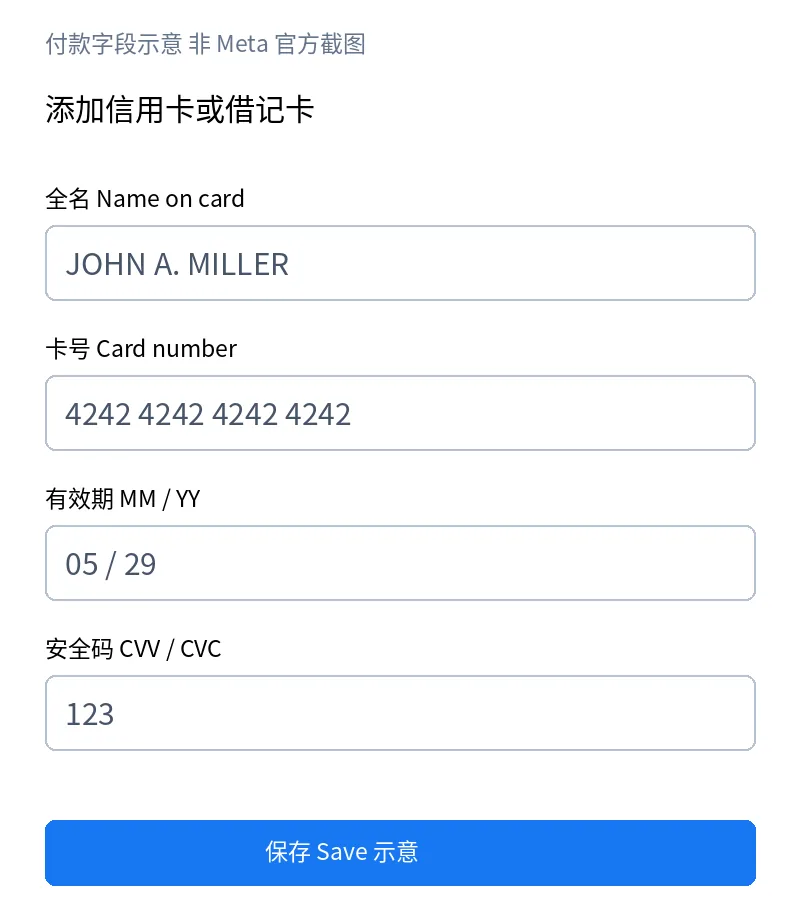 Illustration of the payment fields (not an official Meta screenshot), used to show how the fields map; Meta's official help pages are access-restricted, and the actual form order depends on your account.
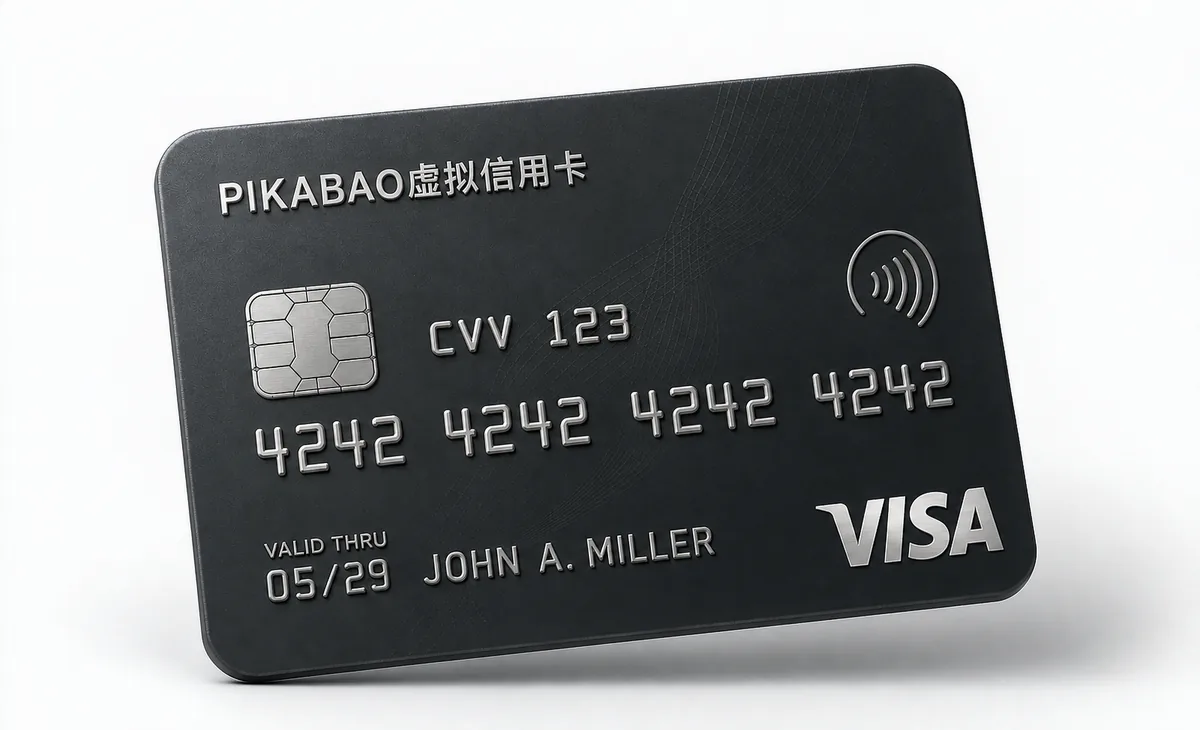 VISA-style card face sample; all card details are fictional.
Match each field: Full name — enter the name registered on the card; Card number — enter the full card number; Expiry date — enter month / year; Security code — enter the CVV / CVC. Replace the example with your own real card details.
Region and address: your card's billing country and address are shown in the "Card details" section of the PIKABAO dashboard. When the page asks for a card billing address, use the details on file; for company location, business address, and tax information, enter your real business details — don't substitute the card address.
Click Save and complete any verification the page requires. Return to the payment methods list and check the card's last four digits and the primary payment method. Binding a card may produce verification or pre-authorization records, which doesn't mean the ad is running or the ad spend has been settled.
Step 5: Publish the ad, wait for review, and start delivering
Double-check the ad account, Page, objective, budget, schedule, creative, URL, and payment method, then click Publish. The platform may first require identity, business, or payment verification — follow the prompts for your account.
In Ads Manager, check the "Delivery" column. After approval, only when you see impressions or spend has the ad actually started delivering; being "published" doesn't guarantee immediate impressions.
If the ad is rejected, review the specific reason and fix the ad, or use the platform's appeal entry. Pausing or turning off the ad stops future delivery; charges already incurred still need to be settled.
Step 6: Confirm delivery status and payment receipts
In Ads Manager, check delivery status, impressions, clicks, spend, and results against your objective, selecting the correct date range. Unlike a subscription where a membership "arrives", opening an ad account has no such moment — what you confirm here is whether the ad is running and whether spend was actually incurred.
Automatic payment accounts: charges usually happen when cumulative costs reach the payment threshold or on the billing date; a single campaign may be charged multiple times. The actual threshold, billing date, and amounts are shown in your account — don't rely on fixed example amounts.
Prepaid balance accounts: add funds using the methods the page supports, and ad spend is deducted from the balance. Not every region or account can switch payment modes; if you see the prepaid interface, follow your own account's flow.
Cross-check the account, date, currency, amount, and card last four digits on Meta's receipts against the PIKABAO transaction history item by item. Displayed ad spend, pre-authorizations, and final settlement can differ in timing; if there are tax or FX differences, review the details on both sides separately.
Budgets, Thresholds and Card Funds
Manage advertising budgets, billing thresholds, ad-account balances, card funds and read-only limits separately. Budgets govern delivery, thresholds trigger billing and ad-account balances serve applicable prepaid modes. Fund the card for actual bills and funding intervals; funding does not raise limits.
Account balance and each card’s funds are separate. After an account deposit arrives, fund the intended card before using it. Card balance changes with spending and does not reset monthly. Per-transaction and daily limits are read-only; funding does not raise them.
| Item | Advertising | Fixed subscription |
|---|---|---|
| Charge basis | Actual delivery, thresholds and bills | Plan and billing cycle |
| Funding | Plan for incurred and expected spend | Fund the next actual bill |
| Ending use | Pause ads and settle incurred charges | Cancel renewal with merchant |
Advertising Use and MCC Support
Advertising category
Choose a currently supported advertising use and check MCC 7311. Pikabao’s category support follows current issuance options, but it does not satisfy every merchant account review, card-type, billing-mode or authentication requirement. Business location and tax details must remain truthful.
Merchant acceptance
Check the network, card type, issuing region, merchant category, billing mode and authentication support together. Acceptance is decided by the merchant and issuer. Correct addresses, supported advertising categories or one successful payment do not guarantee another payment.
Project funding
Allocate cards by project, purpose or billing cycle to reconcile bills, distribute funds and manage cards individually. One card per merchant is not mandatory. Separate cards or BINs do not guarantee risk isolation, account independence or higher acceptance. Set budgets and spending caps with the merchant; card funds and read-only limits are not advertising budgets.
Issuance, Billing Mode and Business Details
Truthful registered details
Payment details include card number, CVV, expiry date, address, postal code and name; enter the registered details shown for your card. Business name, actual location, tax details and platform eligibility must be checked separately using truthful information. A card address is not a substitute. A BIN describes issuance, not residency or account eligibility.
Account billing mode
Choose billing modes and card types actually supported by the account. US BINs are not established as universally easier to accept, and issuing region does not replace business location, tax details or review.
Current card conditions
Check the network, card type, issuing region, merchant category, billing mode and authentication support together. Acceptance is decided by the merchant and issuer. Correct addresses, supported advertising categories or one successful payment do not guarantee another payment.
Funding and Budget Review During Delivery
Upcoming bills and funding
Review upcoming amounts using bill dates and thresholds and plan funding around ad schedules. Record tax, conversion, holds and paid fees separately. If ad spend differs from card charges, reconcile each covered billing period.
Fund the actual amount
Fund for the actual checkout total or next bill, including displayed tax, currency conversion and unsettled amounts. You may leave an extra $1–3 according to the actual bill. This is a balance buffer, not a fixed fee or a universal tax percentage.
Budget and limit review
Review actual spend, unpaid bills, account spending limits and card funds. There is no universal $500–1,000 daily-limit recommendation for new accounts or promise of raising read-only limits.
Track spend by delivery date and card charges by covered billing period; dates may differ. Update records after budget, schedule or card changes. Card funds cover accepted bills and do not determine creative review or delivery performance.
Card Allocation and Approved Advertising Slots
Slot rules
Standard users can hold up to 5 unclosed cards. Approved advertising users can hold up to 30 after application, not automatically for every team account. Frozen, idle and inactive cards count until closure completes. Idle cards are not automatically closed.
Allocate by use
Allocate cards by project, purpose or billing cycle to reconcile bills, distribute funds and manage cards individually. One card per merchant is not mandatory. Separate cards or BINs do not guarantee risk isolation, account independence or higher acceptance. Set budgets and spending caps with the merchant; card funds and read-only limits are not advertising budgets.
Internal register
Use last digits and internal labels to record ad accounts, projects and owners without storing full credentials in shared registers. Different BINs do not guarantee account independence or freedom from linked risk controls.
Separate cards organize records
Track last digits, owner, currency and funding by ad account or project to avoid funding the wrong use. Add cards for actual needs and confirm advertising slots against approval.
Separate cards do not replace platform rules
Different cards do not guarantee independent assets, account approval or removal of risk links. A shared register is not a platform member-permission feature; keep full credentials out of group chats.
Billing Issues, Retries and Delivery
Check charging status
For a payment issue, check the order, receipt, authorization and final charge status to avoid double payment. Use the message to check available funds, read-only limits, card status, registered details, acceptance and authentication. No transaction record is only a clue: it does not prove merchant blocking, that the issuer received nothing or that another card cannot help.
Submit after correction
Retry according to the merchant’s instructions after identifying and correcting the cause. If the status is unclear, contact support instead of repeatedly submitting or issuing test cards. There is no universally safe retry count. Most segments do not charge for declines; charging segments allow 3 free failures per calendar month, then charge $0.40 each from account balance, resetting at the start of the UTC month. Check current segment terms.
Confirm actual delivery
Check the purchasing or advertising account, order, receipt and final charge. Contact official merchant support if paid but not delivered rather than buying or funding again. Card verification or authorization does not prove membership, credited ad balance or ad delivery.
Settlement, Refunds and Stopping Ads
Refunds and returned funds
The merchant initiates refunds under its rules. Check the destination and status against the original transaction; arrival is not guaranteed within a fixed time. Returning card funds to account balance, withdrawing account balance to a wallet and merchant refunds are separate operations. The $3 per account-balance withdrawal is not a fee for every merchant refund. Review pending authorizations, disputes and refunds first.
Stopping delivery and incurred fees
Pause or close ads to stop future delivery and check incurred but unsettled fees. Deleting, freezing or closing a card does not cancel those fees. Reconcile ad spend, verification records and final charges separately.
Safe support evidence
Provide the merchant, time, amount, currency, card’s last digits, transaction ID and a redacted screenshot when contacting support. Never send the full card number, CVV, password, verification code or seed phrase. Contact the merchant for order issues and Pikabao support for card or deposit status.
After stopping, keep the final delivery date, unpaid bills and receipts and review delayed postings. If the merchant accepts a refund request, track request, processing and arrival separately. Accepted requests are not credited funds; ask about old-card handling while refunds remain.
FAQ
Is Meta acceptance guaranteed for virtual cards?
Check the network, card type, issuing region, merchant category, billing mode and authentication support together. Acceptance is decided by the merchant and issuer. Correct addresses, supported advertising categories or one successful payment do not guarantee another payment.
Must ads use multiple cards or alternating BINs?
Allocate cards by project, purpose or billing cycle to reconcile bills, distribute funds and manage cards individually. One card per merchant is not mandatory. Separate cards or BINs do not guarantee risk isolation, account independence or higher acceptance. Set budgets and spending caps with the merchant; card funds and read-only limits are not advertising budgets.
What should I check after an ad charge fails?
For a payment issue, check the order, receipt, authorization and final charge status to avoid double payment. Use the message to check available funds, read-only limits, card status, registered details, acceptance and authentication. No transaction record is only a clue: it does not prove merchant blocking, that the issuer received nothing or that another card cannot help.
Can I repeatedly retry failed payments?
Retry according to the merchant’s instructions after identifying and correcting the cause. If the status is unclear, contact support instead of repeatedly submitting or issuing test cards. There is no universally safe retry count. Most segments do not charge for declines; charging segments allow 3 free failures per calendar month, then charge $0.40 each from account balance, resetting at the start of the UTC month. Check current segment terms.
How should I check an ad-platform refund?
The merchant initiates refunds under its rules. Check the destination and status against the original transaction; arrival is not guaranteed within a fixed time. Returning card funds to account balance, withdrawing account balance to a wallet and merchant refunds are separate operations. The $3 per account-balance withdrawal is not a fee for every merchant refund. Review pending authorizations, disputes and refunds first.
Do card funds and limits reset monthly?
Account balance and each card’s funds are separate. After an account deposit arrives, fund the intended card before using it. Card balance changes with spending and does not reset monthly. Per-transaction and daily limits are read-only; funding does not raise them.
What if the add-payment entry is missing?
Check the selected ad account, management or finance permissions and account notices. Contact the asset administrator or Meta support rather than creating accounts to bypass restrictions.
What should I check after a card is declined?
Check the network, card type, issuing region, merchant category, billing mode and authentication support together. Acceptance is decided by the merchant and issuer. Correct addresses, supported advertising categories or one successful payment do not guarantee another payment.
Can charges still post after closing ads or removing a card?
Pause or close ads to stop future delivery and check incurred but unsettled fees. Deleting, freezing or closing a card does not cancel those fees. Reconcile ad spend, verification records and final charges separately.
Does adding a card charge the full budget?
Not necessarily. Verification, automatic billing, prepaid balances and incurred bills differ. Check account mode and transaction status.
Is the billing threshold a spending cap?
No. A threshold triggers billing; budgets and account spending limits control delivery. Card funds and read-only limits are not advertising budgets.
How should I check several charges on one day?
Automatic billing can trigger several times at thresholds. Reconcile IDs, covered periods, receipts and final status; amount alone does not prove duplicate charging.
Are historical fees payable after pausing ads?
Pause or close ads to stop future delivery and check incurred but unsettled fees. Deleting, freezing or closing a card does not cancel those fees. Reconcile ad spend, verification records and final charges separately.
How should I choose manual or automatic payments?
Availability depends on region, currency, eligibility and platform rules. Free switching or one universally most reliable mode for virtual cards is not guaranteed.
Does an unsupported card always require another segment?
Check the network, card type, issuing region, merchant category, billing mode and authentication support together. Acceptance is decided by the merchant and issuer. Correct addresses, supported advertising categories or one successful payment do not guarantee another payment.
Does a verified payment method establish ad delivery?
No. Payment verification, asset permissions, ad approval and delivery are separate. Review platform notices, campaign state and spend; verification or authorization records are not proof of ad delivery.
Check Uses and Fees Before Issuing a Pikabao Card
Register and complete required checks, review current segments, merchant requirements and actual fees, then fund the intended card for its bills.